View and filter artifacts
Access a complete list of filterable artifacts logged across all your records in the ValidMind Platform, or look at only artifacts linked to a specific record.
Prerequisites
View artifacts
You can view artifacts for all records at once, or only view artifacts linked to a specific record.
View all artifacts
In the left sidebar, click Validation Issues to view a list of validation issues across all records:
Filter this list to include only validation issues you want to see,5 or toggle visibilty for column headers.6
Click on any validation issue for more information, including the proposed remediation plan and any supporting attachments.7
Attachments are listed with the following information:
- Filename
- Icon representing file type
- Date uploaded
- The user who uploaded the file
- File size
- Notes
Click on the attachment to view or download the file.
In the left sidebar, click Artifacts to view lists of other artifact types across all records.
Select an artifact type8 to view from the tabs:
- Policy Exception
- Limitation
In the page that opens is a list of all artifacts for that type.
View record-specific artifacts
In the left sidebar, click Inventory.
Select a record or find your record by applying a filter or searching for it.11
View validation issues or other artifact types for that record.
In the left sidebar that appears for your record, click Validation Issues.
Click on any validation issue for more information, including the proposed remediation plan and any supporting attachments.12
Attachments are listed with the following information:
- Filename
- Icon representing file type
- Date uploaded
- The user who uploaded the file
- File size
- Notes
Click on the attachment to view or download the file.
In the left sidebar that appears for your record, click Artifacts.
Select an artifact type13 to view from the tabs:
- Policy Exception
- Limitation
In the page that opens is a list of all artifacts for that type.
Click on any artifact for more information.
Filter and sort artifacts
- By default, artifacts for all records are listed by creation date in descending order.
- To sort artifacts by a column in ascending () or descending () order, click on the column header.
To narrow down artifacts, you can apply some filters. Published artifact segments, named reusable filters managed by your organization’s administrators, can also be applied as a Segment filter rule within an artifact type, or opened as the scope of the Artifacts listing to view matching artifacts across all artifact types.14
In the left sidebar, click Validation Issues to view a list of validation issues across all records.
Click Filter.
On the Select Your Filters dialog that opens, enter your filtering criteria.
Filtering supports simple and complex conditions using AND or OR logic with nested groups. You can filter on both the default fields created by ValidMind and custom fields created by your organization.
Rules
Rules define individual conditions to filter by, such as the business unit or owner.
To add a rule:
Click click Add Rule to add a filter condition.
A filter rule contains three components:

- Field selector
- Dropdown to choose the field type to filter by.
- Operator selector
- Dropdown to select the comparison operator.
- Value editor
- Input area that varies based on the selected field type.
- From the field selector dropdown, select one of:
- artifact information — One of the artifact fields always created by ValidMind, such as the Business Unit.
- assignees — User assigned to the Validation Issue type artifact.
- artifact fields — One of the organization-specific artifact fields you added for your own use.
- inventory record fields — Fields of the parent inventory record that the artifact type is configured to display, such as the record’s Stage.
- segment — A published artifact segment: a named, reusable filter managed by your organization’s administrators. Available on artifact listings, and not offered inside a segment’s own conditions.
- From the operator dropdown, select one of:
Available operators update based on the field selector
| Text fields | Date fields | Number fields | Boolean fields | Multi-select fields |
|---|---|---|---|---|
| equals | equals | equals | equals | in |
| not equals | not equals | not equals | not equals | not in |
| contains | before | greater than | is empty | contains |
| begins with | after | less than | is not empty | is empty |
| ends with | between | between | is not empty | |
| is empty | is empty | is empty | ||
| is not empty | is not empty | is not empty |
- From the value editor, enter or select a value based on the field type:
Value input changes based on field selector
- Text
- Text input or text area for longer content
- Date
- Date picker
- Number
- Number input or range slider
- Boolean
- Checkbox
- Select/multi-select
- Dropdown with search
- Entity fields
- Dropdown with search for users or records
(Optional) Add more rules by following the same steps.
Click Apply Filters.
Groups
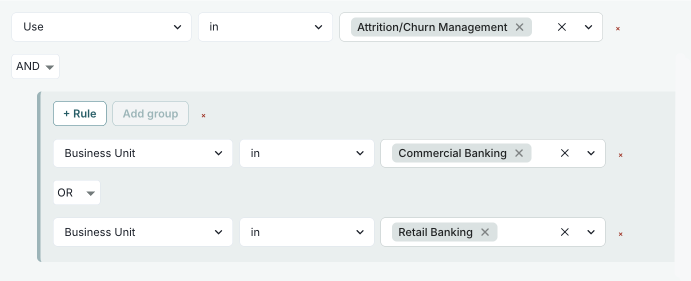
Groups combine multiple rules that are evaluated together and can be nested one level deep. You use groups for more complex filters, such as Condition A AND (Condition B OR Condition C).
To add a group:
Click Add Group to create a nested group of conditions.
Follow the same steps as in Rules to add one or several conditions to the group.
Click Apply Filters.
Combinators
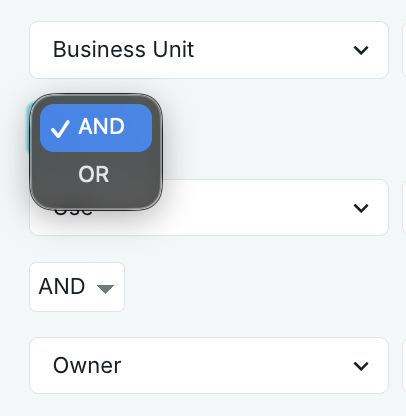
Combinators define how multiple rules or groups are logically combined when matching conditions. By default, multiple rules are combined with AND logic, meaning all conditions must match.
Supported combinators:
- AND — All conditions must match
- OR — At least one condition must match
To change the combinator:
Click the AND or OR button between rules or groups to change how conditions are combined.
Click Apply Filters.
View active filters
After applying filters, active filter conditions appear as individual chips next to the label Filtered by:.
- Field names
- Operators
- Values
Remove active filters
Click the icon on any filter chip to remove that specific filter condition. The remaining filters are automatically reapplied.
Examples
Available values depend on your organization’s custom configuration
Show records where Record Field: Risk Level is High (requires that you have a custom select field called Risk Level):
On the Inventory page, click Filter.
Click Add Rule:
- Field =
Record Field: Risk Level - Operator =
equals - Value =
High
- Field =
Click Apply Filters.
Show records that are Stage: In Production AND in Business Unit: Risk Management:
On the Inventory page, click Filter.
On the Select Your Filters dialog that opens, click Add Rule:
- Field =
Stage - Operator =
in - Value =
In Production
- Field =
Add another rule:
- Field =
Business Unit - Operator =
in - Value =
Risk Management
- Field =
Click Apply Filters.
Show records that are (Stage: In Production AND in Business Unit: Risk Management) OR (Stage: In Production AND in Use: Attrition/Churn Management):
On the Inventory page, click Filter.
Click Add Rule to add your rules:
- First rule:
- Field =
Stage - Operator =
in - Value =
In Production
- Field =
- Second rule:
- Field =
Business Unit - Operator =
in - Value =
Risk Management
- Field =
- First rule:
Click Add Group to create a new group:
Change combinator to
OR(between the two groups).In the new group, click Add Rule to add:
- First rule:
- Field =
Stage - Operator =
in - Value =
In Production
- Field =
- Second rule:
- Field =
Use - Operator =
in - Value =
Attrition/Churn Management
- Field =
- First rule:
Click Apply Filters.
Show records where (Stage: Active OR In Periodic Review) AND (Risk Level: High OR Medium) AND Owner: John Doe:
On the Inventory page, click Filter.
Click Add Group to add your groups:
- First group:
- Field =
Stage - Operator =
in - Value =
In Production,In Periodic Review
- Field =
- Second group:
- Field =
Record Field: Risk Level - Operator =
equals - Value =
High,Medium
- Field =
- First group:
Add Rule to add a rule:
- Field =
Owner - Operator =
in - Value =
John Doe
- Field =
Ensure all groups and rules use AND combinator.
Click Apply Filters.
Show records implemented between January 1, 2025 and January 31, 2025:
On the Inventory page, click Filter.
Add Rule:
- Field =
Implementation Date - Operator =
between.
- Enter start date — January 1, 2025
- Enter end date — January 31, 2025
- Field =
Click Apply Filters.
Show records owned by a specific user that have .pdf attachments:
On the Inventory page, click Filter.
Click Add Rule:
- Field =
Owner - Operator =
in - Value = Select the user from dropdown.
- Field =
Add another rule:
- Field =
Attachments - Operator =
file name contains - Value =
.pdf.
- Field =
Ensure the combinator between rules is set to
AND.Click Apply Filters.
- Click Apply Filters.
Changes are automatically saved to your account and do not affect other users.
In the left sidebar, click Artifacts to view lists of other artifact types across all records.
Select an artifact type15 to view from the tabs:
- Policy Exception
- Limitation
Click Filter.
On the Select Your Filters dialog that opens, enter your filtering criteria.
Filtering supports simple and complex conditions using AND or OR logic with nested groups. You can filter on both the default fields created by ValidMind and custom fields created by your organization.
Rules
Rules define individual conditions to filter by, such as the business unit or owner.
To add a rule:
Click click Add Rule to add a filter condition.
A filter rule contains three components:
- Field selector
- Dropdown to choose the field type to filter by.
- Operator selector
- Dropdown to select the comparison operator.
- Value editor
- Input area that varies based on the selected field type.
- From the field selector dropdown, select one of:
- artifact information — One of the artifact fields always created by ValidMind, such as the Business Unit.
- assignees — User assigned to the Validation Issue type artifact.
- artifact fields — One of the organization-specific artifact fields you added for your own use.
- inventory record fields — Fields of the parent inventory record that the artifact type is configured to display, such as the record’s Stage.
- segment — A published artifact segment: a named, reusable filter managed by your organization’s administrators. Available on artifact listings, and not offered inside a segment’s own conditions.
- From the operator dropdown, select one of:
Available operators update based on the field selector
| Text fields | Date fields | Number fields | Boolean fields | Multi-select fields |
|---|---|---|---|---|
| equals | equals | equals | equals | in |
| not equals | not equals | not equals | not equals | not in |
| contains | before | greater than | is empty | contains |
| begins with | after | less than | is not empty | is empty |
| ends with | between | between | is not empty | |
| is empty | is empty | is empty | ||
| is not empty | is not empty | is not empty |
- From the value editor, enter or select a value based on the field type:
Value input changes based on field selector
- Text
- Text input or text area for longer content
- Date
- Date picker
- Number
- Number input or range slider
- Boolean
- Checkbox
- Select/multi-select
- Dropdown with search
- Entity fields
- Dropdown with search for users or records
(Optional) Add more rules by following the same steps.
Click Apply Filters.
Groups
Groups combine multiple rules that are evaluated together and can be nested one level deep. You use groups for more complex filters, such as Condition A AND (Condition B OR Condition C).
To add a group:
Click Add Group to create a nested group of conditions.
Follow the same steps as in Rules to add one or several conditions to the group.
Click Apply Filters.
Combinators
Combinators define how multiple rules or groups are logically combined when matching conditions. By default, multiple rules are combined with AND logic, meaning all conditions must match.
Supported combinators:
- AND — All conditions must match
- OR — At least one condition must match
To change the combinator:
Click the AND or OR button between rules or groups to change how conditions are combined.
Click Apply Filters.
View active filters
After applying filters, active filter conditions appear as individual chips next to the label Filtered by:.
- Field names
- Operators
- Values
Remove active filters
Click the icon on any filter chip to remove that specific filter condition. The remaining filters are automatically reapplied.
Examples
Available values depend on your organization’s custom configuration
Show records where Record Field: Risk Level is High (requires that you have a custom select field called Risk Level):
On the Inventory page, click Filter.
Click Add Rule:
- Field =
Record Field: Risk Level - Operator =
equals - Value =
High
- Field =
Click Apply Filters.
Show records that are Stage: In Production AND in Business Unit: Risk Management:
On the Inventory page, click Filter.
On the Select Your Filters dialog that opens, click Add Rule:
- Field =
Stage - Operator =
in - Value =
In Production
- Field =
Add another rule:
- Field =
Business Unit - Operator =
in - Value =
Risk Management
- Field =
Click Apply Filters.
Show records that are (Stage: In Production AND in Business Unit: Risk Management) OR (Stage: In Production AND in Use: Attrition/Churn Management):
On the Inventory page, click Filter.
Click Add Rule to add your rules:
- First rule:
- Field =
Stage - Operator =
in - Value =
In Production
- Field =
- Second rule:
- Field =
Business Unit - Operator =
in - Value =
Risk Management
- Field =
- First rule:
Click Add Group to create a new group:
Change combinator to
OR(between the two groups).In the new group, click Add Rule to add:
- First rule:
- Field =
Stage - Operator =
in - Value =
In Production
- Field =
- Second rule:
- Field =
Use - Operator =
in - Value =
Attrition/Churn Management
- Field =
- First rule:
Click Apply Filters.
Show records where (Stage: Active OR In Periodic Review) AND (Risk Level: High OR Medium) AND Owner: John Doe:
On the Inventory page, click Filter.
Click Add Group to add your groups:
- First group:
- Field =
Stage - Operator =
in - Value =
In Production,In Periodic Review
- Field =
- Second group:
- Field =
Record Field: Risk Level - Operator =
equals - Value =
High,Medium
- Field =
- First group:
Add Rule to add a rule:
- Field =
Owner - Operator =
in - Value =
John Doe
- Field =
Ensure all groups and rules use AND combinator.
Click Apply Filters.
Show records implemented between January 1, 2025 and January 31, 2025:
On the Inventory page, click Filter.
Add Rule:
- Field =
Implementation Date - Operator =
between.
- Enter start date — January 1, 2025
- Enter end date — January 31, 2025
- Field =
Click Apply Filters.
Show records owned by a specific user that have .pdf attachments:
On the Inventory page, click Filter.
Click Add Rule:
- Field =
Owner - Operator =
in - Value = Select the user from dropdown.
- Field =
Add another rule:
- Field =
Attachments - Operator =
file name contains - Value =
.pdf.
- Field =
Ensure the combinator between rules is set to
AND.Click Apply Filters.
- Click Apply Filters.
Filter by calculated and aggregation fields
The artifact type’s own Calculation fields, and the Calculation and Aggregation fields of the parent record that the artifact type displays,16 appear in the field selector. The operators follow the value the field produces: number operators for a Number result type or a COUNT aggregation, date operators such as before, after, and between for a Date result type or a MIN or MAX aggregation, and text operators for a Text result type.
These values are stored and refreshed in the background rather than recalculated when you filter. When a rule uses one of these fields, a notice next to the applied filters names the field and reports whether its values are up to date. If they are not, the notice shows how old the oldest stored value is and when the next automatic refresh runs.
Two additional operators check the stored value itself: has error finds artifacts where the formula or aggregation failed, shown as ERR: in the list, and has wrong value type finds artifacts where a Calculation field returned a value that does not match its result type. The second operator is offered only on Calculation fields with a result type. Published artifact segments can also use these fields in their conditions.
Group artifacts
Group artifacts to organize the table view into collapsible sections based on the value of a single field, with an artifact count for each section:
In the left sidebar, click Validation Issues for a list of validation issues across all records, or click Artifacts and select an artifact type17 for a list of other artifact types.
Click Group By.
Select the field to group by:
- Search for a field name in the list to narrow down results.
- Grouping is limited to one field at a time — selecting another field replaces the current grouping.
Once grouped, the applied field appears as a Grouped by chip alongside your active filters, and you can work with the grouped listing:
- Click on a group header to expand or collapse that section.
- Click Expand All or Collapse All to toggle every section at once.
- To remove grouping, click Group By and select Clear grouping, or clear the Grouped by chip.
Grouping is included when you save a view, so you can reapply the same grouped layout later or share it with your organization.18