Work with content blocks
Make edits to your documents by adding or removing content blocks directly in the online editor.
What are content blocks?
Content blocks are modular document template components, used to populate your documents:
- Content blocks are empty canvases that you fill in with text and test results.
- Content blocks are inserted into document templates that define the structure of your documents.2
Content block types
Content blocks can be new, blank blocks, or prepopulated via your library of logged test or metric results and text block templates:
- simple text block new, from library
- Can be added anywhere on documents and edited to include additional documentation in text format.
- test-driven block from library
- Can be added within documents to display one of the supported test results collected by the ValidMind Library.
- metric over time block from library
- Can be added within ongoing monitoring reports to display one of the supported metric over time results collected by the library.
Content editing toolbar

The content editing toolbar is a rich text editor that enables you to:
- Undo or redo changes
- Format your text, including adding hyperlinks and code blocks
- Reference related record and artifact field values with variables3
- Insert LaTeX formulas4
- Reference other sections of the document5
- Attach images via upload or URL
You can also use the toolbar to suggest changes, save named versions of content, and leave comments.6
Prerequisites
Add content blocks
In the left sidebar, click Inventory.
Select a record or find your record by applying a filter or searching for it.11
In the left sidebar that appears for your record, click Documents and select the Latest tab.12
Click on the document file you want to add a content block to.13
Click on a section header to expand that section and add content.
Hover your mouse over the space where you want your new block to go until a horizontal line with a sign appears that indicates you can insert a new block:

Adding a content block in the ValidMind Platform
Click and then select one of the available options:
- Text Block
- Adds a new section with a blank content block.
After adding the block to your document, click on the text to make changes or add comments.17
Reference field values
While editing a simple text block within documents, you can reference values in the form of variables from:
Click { } Insert Variable in the toolbar while editing a content block.
Select the variable you want to reference from the drop-down menus:
- Record — Record field values by field group.
- {artifact-type} — Artifact field values grouped by artifact type, where
{artifacttype}represents the name of your artifact type. Only types of artifacts already logged on the associated record will appear in this selection.
Click away from the content block to apply your changes, and confirm that the correct variable value is displayed in the content block as expected.
Insert mathematical formulas
While editing a simple text block within documents, you can insert math equations using the formula editor:
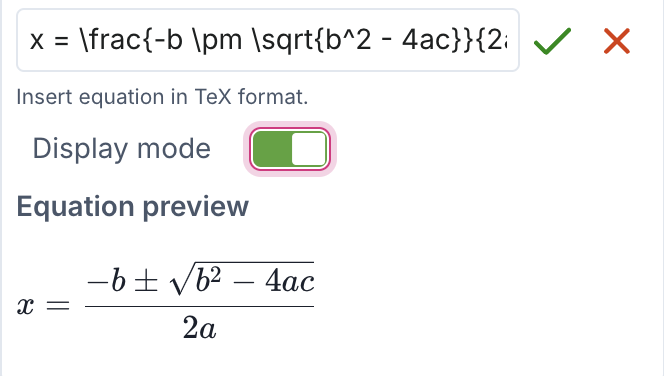
Click \(f(x)\) in the toolbar while editing a content block.
Enter your LaTeX formula in the text box and confirm that the Equation preview generates as expected:21
- To insert the equation inline, leave Display mode untoggled.
- To insert the equation on its own line, toggle Display mode on.
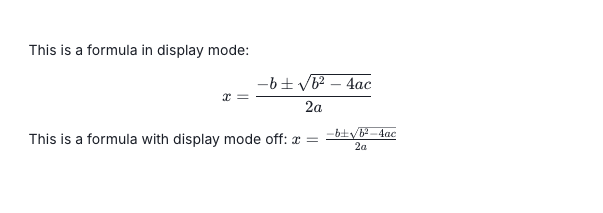
The two formula display modes Click to add the equation to your content block.
Generate content drafts with AI
While editing a simple text block within documents, you can have ValidMind assist you with generating content drafts.
To generate content drafts:
Click in the content editing toolbar and select (Generate Text with AI).
Enter a custom prompt and click Send, or click Generate Content to compose a draft for review.
You can also include record attachments in
.pdfformat24 as context documents:- Click and select Add Document to Context.
- Check off the attachment files you would like to include as extra context.
- Click Add to Context to include your selected attachments alongside your prompt to assist in text generation.
Review the draft composed by the ValidMind AI Content Builder for accuracy and relevance, then:
- Click Insert to document to add the draft into your content block.
- Or, submit a different prompt in the dialogue box and click Send to regenerate a different draft.
After you insert the AI-generated draft, click on the text box to make the necessary edits and adjustments to your copy:
- Ensure that content is in compliance with the quality guidelines outlined by your organization.
- Use the content editing toolbar25 just as you would with any other text block.
When generating content drafts with AI, accepted versions and edits are retained in your Activity26 just like other updates to your documents.
Reference document sections
While editing a simple text block within documents, you can directly reference other sections of the document and create hyperlinks to those sections:
In any simple text block, type
#to retrieve the table of contents for the document you’re editing.Select the title of the section you want to reference from the drop-down menu.
After you click out of the content block editor, click on the hyperlink to verify that it navigates you to the correct section as expected.
Click in the content editing toolbar.
Select Insert Reference.
Select the title of the section you want to reference from the drop-down menu.
After you click out of the content block editor, click on the hyperlink to verify that it navigates you to the correct section as expected.
Hyperlinks will also take you to the referenced section in PDF document exports.27
Remove content blocks
Test-driven or metric over time blocks can be re-added later on but text blocks are currently deleted permanently.
In the left sidebar, click Inventory.
Select a record or find your record by applying a filter or searching for it.28
In the left sidebar that appears for your record, click Documents and select the Latest tab.29
Click on the document file you want to remove a block from.30
Click on a section header to expand that section and remove content.
Locate the block you want to remove, and hover over it until the block’s toolbar appears in the top right-hand corner.
Select Delete to remove the block.
Click Yes, Remove Block to confirm permanent deletion of that block.