Databricks quickstart
Install the ValidMind Library, load data from a Unity Catalog table via Spark, train a simple classification model, and run ValidMind tests to send results to the ValidMind Platform.
Link ValidMind inventory records to models, datasets, and agents in Databricks Unity Catalog for governance across your ML ecosystem and bidirectional metadata synchronization.
You can also run validation notebooks directly against Databricks-hosted data.
Databricks Unity Catalog provides a unified governance solution for all data and AI assets across your Databricks workspaces. The integration exposes three Unity Catalog resource types:
After linking your inventory record to Databricks, you can run validation tests directly against data hosted in Unity Catalog.
flowchart LR
    subgraph databricks [Databricks]
        UC[Unity Catalog]
        Data[Tables/Datasets]
    end

    subgraph notebook [Validation Notebook]
        SDK[ValidMind SDK]
    end

    subgraph validmind [ValidMind Platform]
        Report[Validation Report]
        Inventory[Inventory Record]
    end

    UC --> Data
    Data --> SDK
    SDK --> Report
    Report --> Inventory
    Inventory -.->|linked| UC
In the left sidebar, click Settings.
Under Integrations, select Connections.
Click Add Connection.
In the modal that opens, select Databricks.3
Complete the shared fields:
https://adb-1234567890.azuredatabricks.net.Complete the fields for your authentication method:
Click Connect with Databricks. You are redirected to Databricks to sign in and authorize access. After you authorize, you return to Connections with the new connection created. Access and refresh tokens are stored securely and are never shown in the form.
Operational to enable immediately or Disabled if you plan to finish setup later.Click Save Integration.
Test the connection:
If the test is successful, the message Connection successful is displayed.
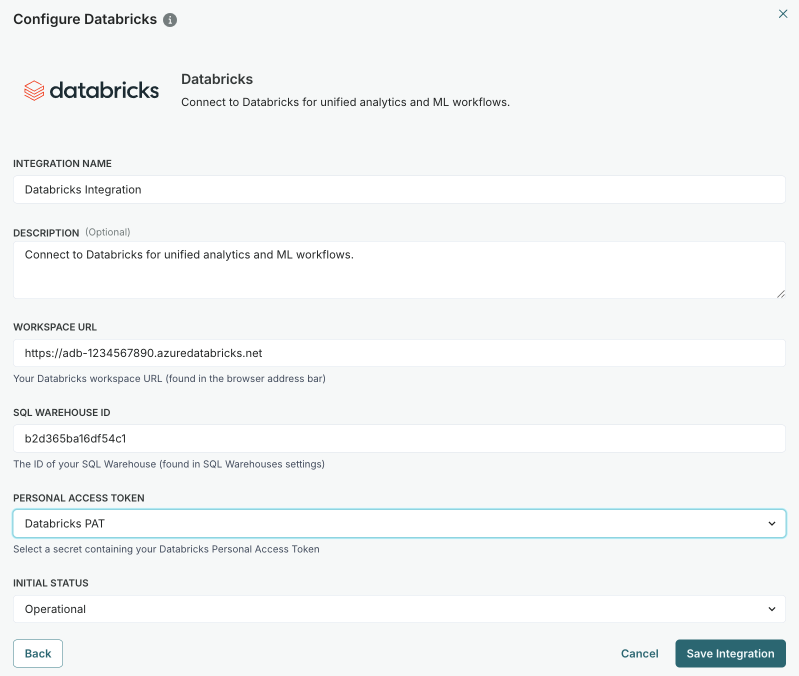
To refresh OAuth tokens later, edit the Databricks connection and click Reconnect with Databricks. Complete the Databricks sign-in flow again. Switching an existing connection from Personal Access Token to OAuth also requires reconnecting.
Once the connection is configured, you can link ValidMind inventory records to your Databricks Unity Catalog resources:
In the left sidebar, click Inventory.
Select a record by clicking on it or find your record by applying a filter or searching for it.5
Scroll down until you locate the Databricks connection box in the right sidebar.
Hover over the Databricks box.
When the menu appears, click on it and select Link Model.
In the modal that opens:
Click Link Model to complete the link.
After linking, metadata from the Unity Catalog resource syncs to ValidMind. You can use linked fields in custom calculated fields to surface Databricks metadata directly in your inventory views.