Synchronize records with GitLab
Synchronize your GitLab model registry with the ValidMind inventory for comprehensive tracking.
Prerequisites
Sync ValidMind records with GitLab
In the left sidebar, click Settings.
Under Integrations, select Connections.
Click Add Connection.
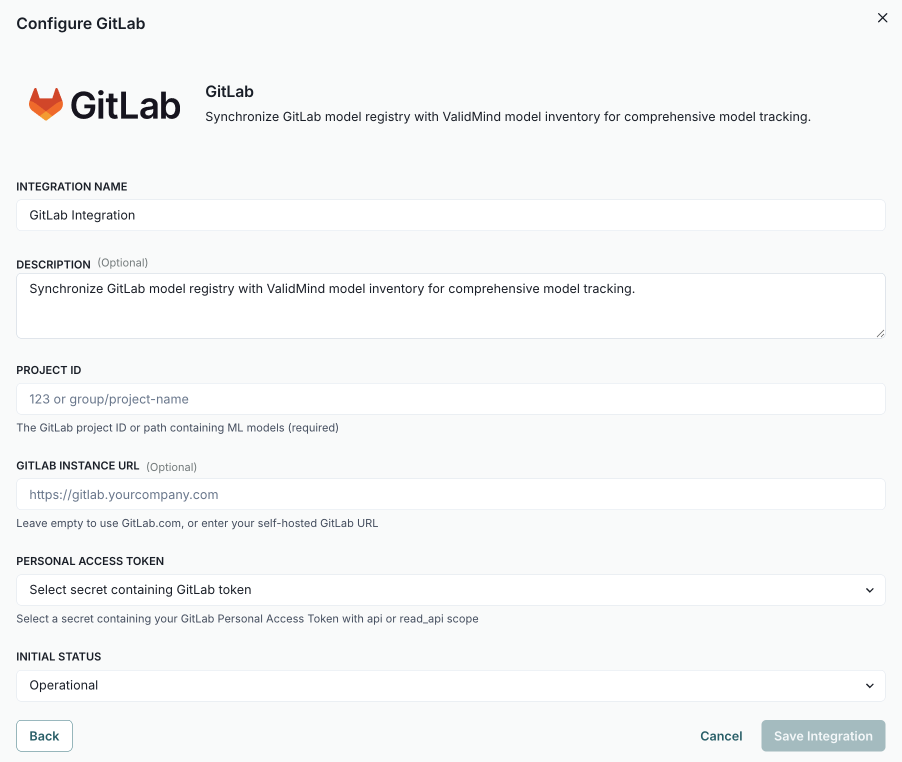
In the modal that opens, select GitLab.3
Complete:
- Integration Name — How other admins can identify the connection.
- Description (optional) — The intended usage or additional details.
- Project ID — The GitLab project ID or path containing ML models (required).
- Gitlab Instance URL (optional) — Leave empty to use GitLab.com, or enter your self-hosted GitLab URL.
- Personal Access Token — Select a secret containing your GitLab Personal Access Token with
apiorread_apiscope. - Initial Status — Set to
Operationalto enable immediately orDisabledif you plan to finish setup later.
Click Save Integration.
Test the connection:
- Hover over the GitLab connection you just created.
- When the menu appears, click on it and select Test Connection.
If the test is successful, the message Connection successful is displayed.
In the left sidebar, click Inventory.
Select a record or find your record by applying a filter or searching for it.4
Scroll down until you locate the GitLab connection box in the right sidebar.
Hover over the GitLab box.
When the menu appears, click on it and select Link Model.
In the modal that opens, click the Select Model dropdown to pick the GitLab model to link.
(Optional) Click Test Connection to ensure the connection is working as expected.
If the test is successful, the message Connection Test Successful is displayed.
Click Link Model.