Manage text block library
Build a library of reusable text blocks to insert into your documents. Reusable text blocks can be private, visible only to the user, or shared, accessible across your organization.
Prerequisites
Add text blocks
To create a new text block via the block library:
In the left sidebar, click Settings.
Under Documents, select Block Library.
Click Add Block and enter:
- The Name of your text block
- (Optional) A Description for your text block
- The templated Content for your text block
Insert mathematical formulas
While composing content for a library text block, you can insert math equations using the formula editor:
Click \(f(x)\) in the toolbar while editing a content block.
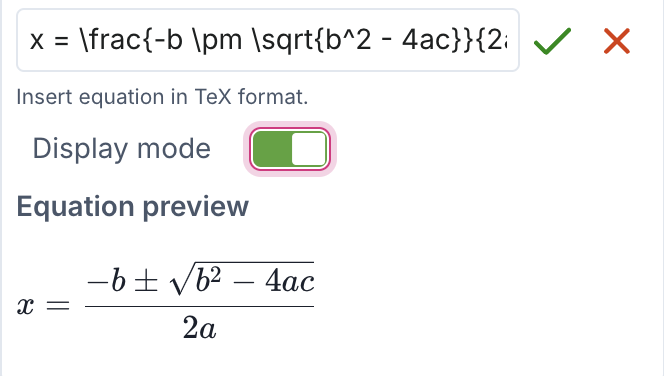
Enter your LaTeX formula in the text box and confirm that the Equation preview generates as expected:2
- To insert the equation inline, leave Display mode untoggled.
- To insert the equation on its own line, toggle Display mode on.
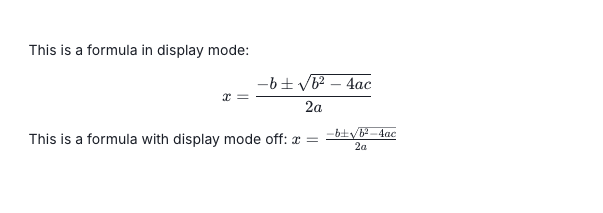
The two formula display modes Click to add the equation to your content block.
Select a Sharing option:
- Private — Visible only to you
- Shared — Accessible across your organization
Click Add Block to save your text block.
Add existing text blocks to library
To transform an existing text block into a reusable block:
In the left sidebar, click Inventory.
Select a record or find your record by applying a filter or searching for it.3
In the left sidebar that appears for your record, click Documents and select the Latest tab.4
Click on the file you’d like to copy a text block from.5
Select the relevant section containing the text block you want to make reusable.
Hover your mouse over the text block you want to add to your block library, and click Add to Library to enter the details for your block:
- The Name of your text block
- (Optional) A Description for your text block
- The templated Content for your text block
- Whether the block Sharing permissions are Private or Shared
Click Add Block to save your text block.
Once added, insert private or shared text blocks into your documents,6 or shared text blocks into document templates.7
Duplicate text blocks
To make a copy of an existing text block in your block library:
In the left sidebar, click Settings.
Under Documents, select Block Library.
To the right of the text block you want to edit, click and select Duplicate Text Block.
Make your desired changes to the following fields:
- The Name of your text block
- (Optional) A Description for your text block
- The templated Content for your text block
- Whether the block Sharing permissions are Private or Shared
Click Duplicate Block to save the copy of your text block.
Edit text blocks
To modify an existing text block in your block library:
In the left sidebar, click Settings.
Under Documents, select Block Library.
To the right of the text block you want to edit, click and select Edit Details.
Make your desired changes to the following fields:
- The Name of your text block
- (Optional) A Description for your text block
- The templated Content for your text block
- Whether the block Sharing permissions are Private or Shared
Click Save Block to apply your changes.
Delete text blocks
While previously inserted instances of text blocks will not be affected, the text block will no longer be available for future use via the block library.
To remove an existing text block from your block library:
In the left sidebar, click Settings.
Under Documents, select Block Library.
To the right of the text block you want to remove, click and select Delete Text Block.
Click Yes, Delete Block to confirm permanent deletion of that block from your block library.