Manage workflows
Review and manage workflows associated with a specific record or artifact, and initiate or abort workflows configured for your organization on that record or artifact.
Once customized, use workflows to transition your records into their appropriate next stages throughout your risk management lifecycles.
Monitor every workflow execution across your organization on a single timeline:3
3 To view workflows from within a record or artifact, refer to: Manage workflows
In the left sidebar, click Workflows.
Under the Inventory Record Type drop-down, select the type of record you want to view all workflow executions for:4
W_5 - Annual Model Review). The list follows the Workflow Type switches, and your selection applies to both View by Model and View by Workflow Assignee.Filtering supports simple and complex conditions using AND or OR logic with nested groups. You can filter on both the default fields created by ValidMind and custom fields created by your organization.
Rules define individual conditions to filter by, such as the business unit or owner.
To add a rule:
Click click Add Rule to add a filter condition.
A filter rule contains three components:

Inventory
| Text fields | Date fields | Number fields | Boolean fields | Multi-select fields |
|---|---|---|---|---|
| equals | equals | equals | equals | in |
| not equals | not equals | not equals | not equals | not in |
| contains | before | greater than | is empty | contains |
| begins with | after | less than | is not empty | is empty |
| ends with | between | between | is not empty | |
| is empty | is empty | is empty | ||
| is not empty | is not empty | is not empty |
(Optional) Add more rules by following the same steps.
Click Apply Filters.
Groups combine multiple rules that are evaluated together and can be nested one level deep. You use groups for more complex filters, such as Condition A AND (Condition B OR Condition C).
To add a group:
Click Add Group to create a nested group of conditions.
Follow the same steps as in Rules to add one or several conditions to the group.
Click Apply Filters.
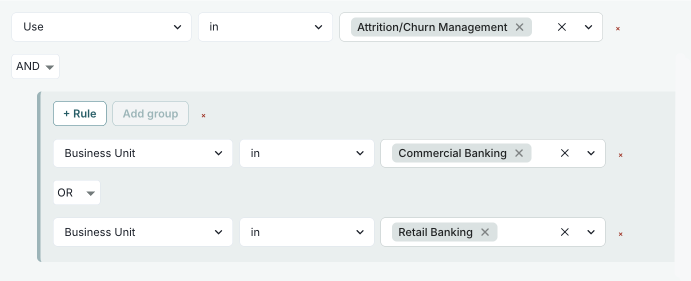
Combinators define how multiple rules or groups are logically combined when matching conditions. By default, multiple rules are combined with AND logic, meaning all conditions must match.
Supported combinators:
To change the combinator:
Click the AND or OR button between rules or groups to change how conditions are combined.
Click Apply Filters.
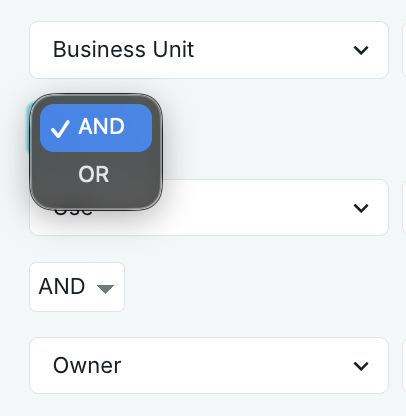
After applying filters, active filter conditions appear as individual chips next to the label Filtered by:.
Click the icon on any filter chip to remove that specific filter condition. The remaining filters are automatically reapplied.
Available values depend on your organization’s custom configuration
Show records where Record Field: Risk Level is High (requires that you have a custom select field called Risk Level):
On the Inventory page, click Filter.
Click Add Rule:
Record Field: Risk LevelequalsHighClick Apply Filters.
Show records that are Stage: In Production AND in Business Unit: Risk Management:
On the Inventory page, click Filter.
On the Select Your Filters dialog that opens, click Add Rule:
StageinIn ProductionAdd another rule:
Business UnitinRisk ManagementClick Apply Filters.
Show records that are (Stage: In Production AND in Business Unit: Risk Management) OR (Stage: In Production AND in Use: Attrition/Churn Management):
On the Inventory page, click Filter.
Click Add Rule to add your rules:
StageinIn ProductionBusiness UnitinRisk ManagementClick Add Group to create a new group:
Change combinator to OR (between the two groups).
In the new group, click Add Rule to add:
StageinIn ProductionUseinAttrition/Churn ManagementClick Apply Filters.
Show records where (Stage: Active OR In Periodic Review) AND (Risk Level: High OR Medium) AND Owner: John Doe:
On the Inventory page, click Filter.
Click Add Group to add your groups:
StageinIn Production, In Periodic ReviewRecord Field: Risk LevelequalsHigh, MediumAdd Rule to add a rule:
OwnerinJohn DoeEnsure all groups and rules use AND combinator.
Click Apply Filters.
Show records implemented between January 1, 2025 and January 31, 2025:
On the Inventory page, click Filter.
Add Rule:
Implementation Datebetween.Click Apply Filters.
Show records owned by a specific user that have .pdf attachments:
On the Inventory page, click Filter.
Click Add Rule:
OwnerinAdd another rule:
Attachmentsfile name contains.pdf.Ensure the combinator between rules is set to AND.
Click Apply Filters.
Click on any listed workflow to review the details of that specific workflow:
11 Click to reveal notes, and to hide them.
Transition workflows
12 Hover over a workflow step to view an animation of the steps connecting to and from that step.
Save searches and filters applied to the workflow timeline as a view to reapply at any time:
Click on the name of your saved view, or Select View if you are not currently displaying a saved view.
Select My Views (#) and click on Save New View to create your saved view.
Enter the View Name and Description for your saved view.
Click Add New View to save your saved view.
Once you’ve created a saved personal view, you can share it with others in your organization.14
Deletion of saved views is permanent.
Click on the name of your saved view, or Select View if you are not currently displaying a saved view.
Select My Views (#).
Hover over the name of the view you want to edit or remove.
When the menu appears, click on it and select:
Select My Views (#).
Click on the name of your saved view, or Select View if you are not currently displaying a saved view.
Hover over the name of the view you want to share with your organization.
When the menu appears, click on it and select Publish to Organization.
(Optional) Edit the View Name and Description for your shared view.
(Optional) Select one or more roles under Visible to Roles to limit which users can see the view.
Click Publish View to share your view with your organization.
Role restrictions apply to shared views only — a personal view is only ever visible to you, so there is nothing to restrict. Unpublishing a view clears its role restriction.19