Customize ValidMind Document Checker
Manage the regulations and policies and their attached assessments available when you use the ValidMind Document Checker.
Use the ValidMind Document Checker to analyze your completed documents by comparing them against regulatory standards.
The ValidMind Document Checker is a compliance tool that reviews documents against a selected regulatory standard. Use the Document Checker to identify gaps, generate actionable recommendations, and focus your efforts on areas that require attention. The Document Checker uses a structured checklist to:
As a compliance tool, the ValidMind Document Checker is most useful when your documentation or report is sufficiently complete and you are preparing records for regulatory submission or internal audit, as it helps reduce manual review effort and improve quality assurance.
In the left sidebar, click Inventory.
Select a record or find your record by applying a filter or searching for it.4
In the left sidebar that appears for your record, click Documents and select the Latest or Saved Versions tab.5
Click on the file you want to check:6
Locate the Document Checker box on the right and click Check Document.
Locate Check Document on the right and click to expand the menu.
Click Check Document.
Proceed with selecting a regulation to check your document against.
In the Document Checker modal, select a Regulation or Policy and an associated Assessment from the drop-down menus to check your document against:

A list of regulation-based questions appears for your review.
Scroll to the bottom and click Check Document.
The ValidMind Document Checker analyzes your document, identifies gaps, and generates recommendations for specific questions for your review. When the analysis completes, your results are saved automatically as a private run that only you can see.7
Gap Identified — A question that is not addressed and requires attention.
Partial Gap — A question that is partially addressed and requires attention.
No Significant Gaps — A question that is fully addressed.
Review questions that require attention. Each question includes a(n):
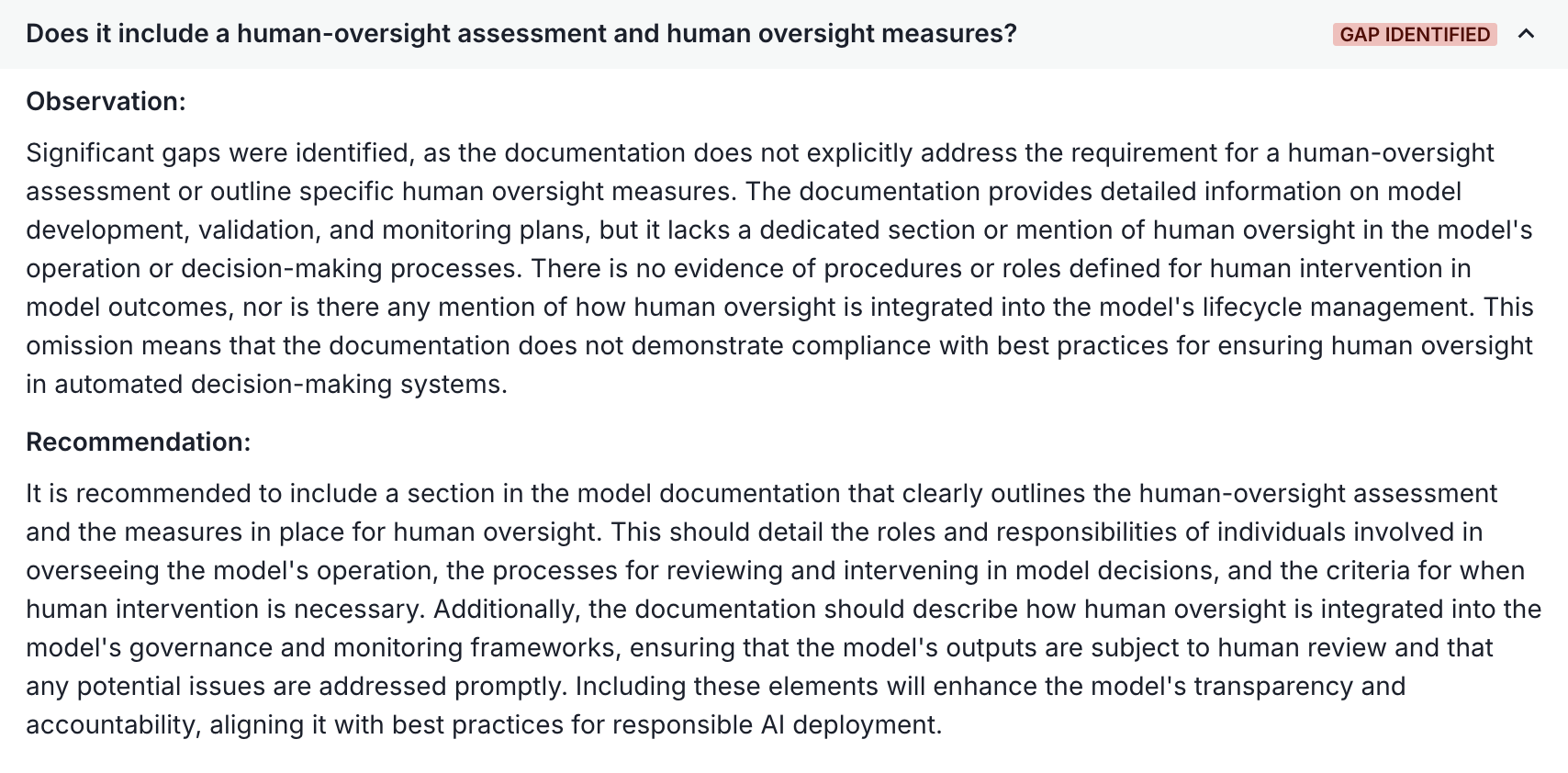
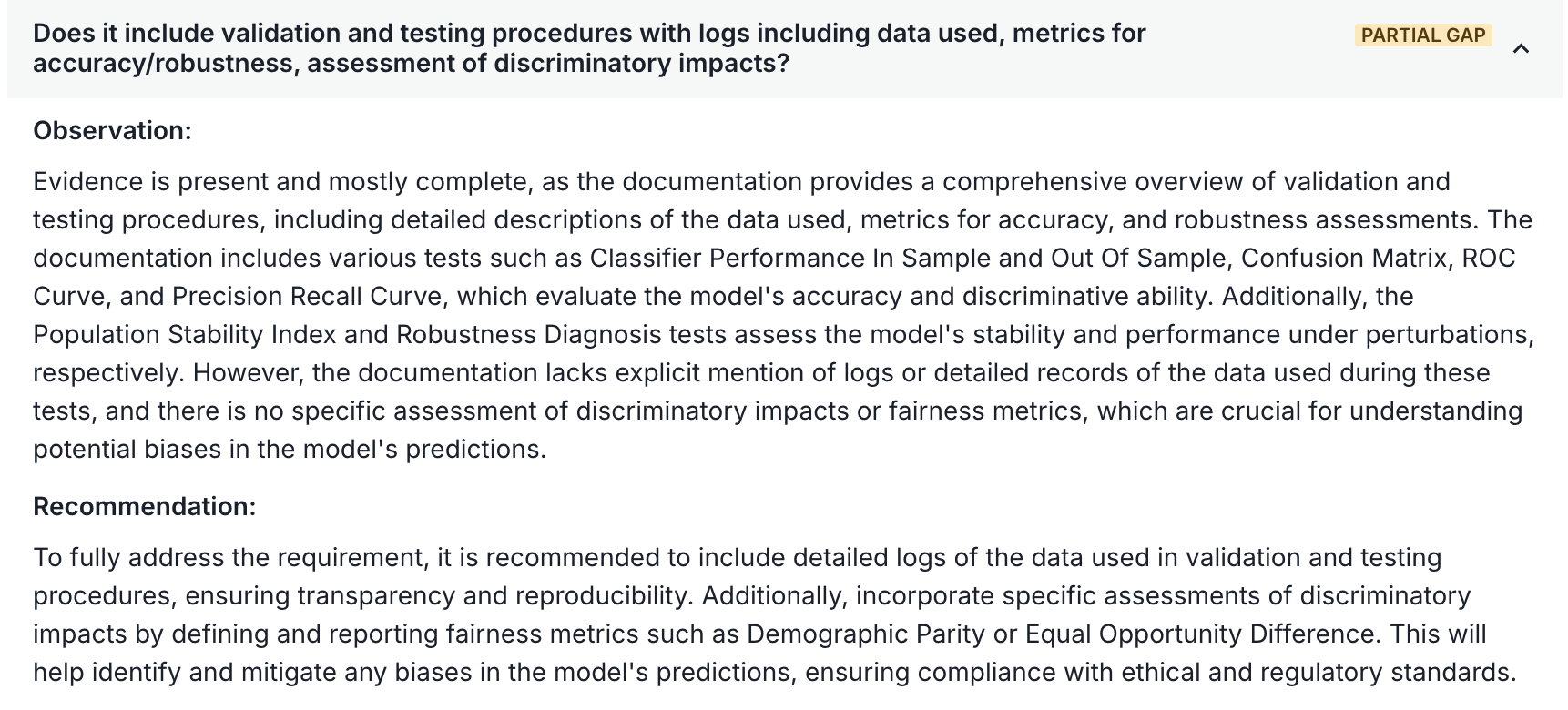
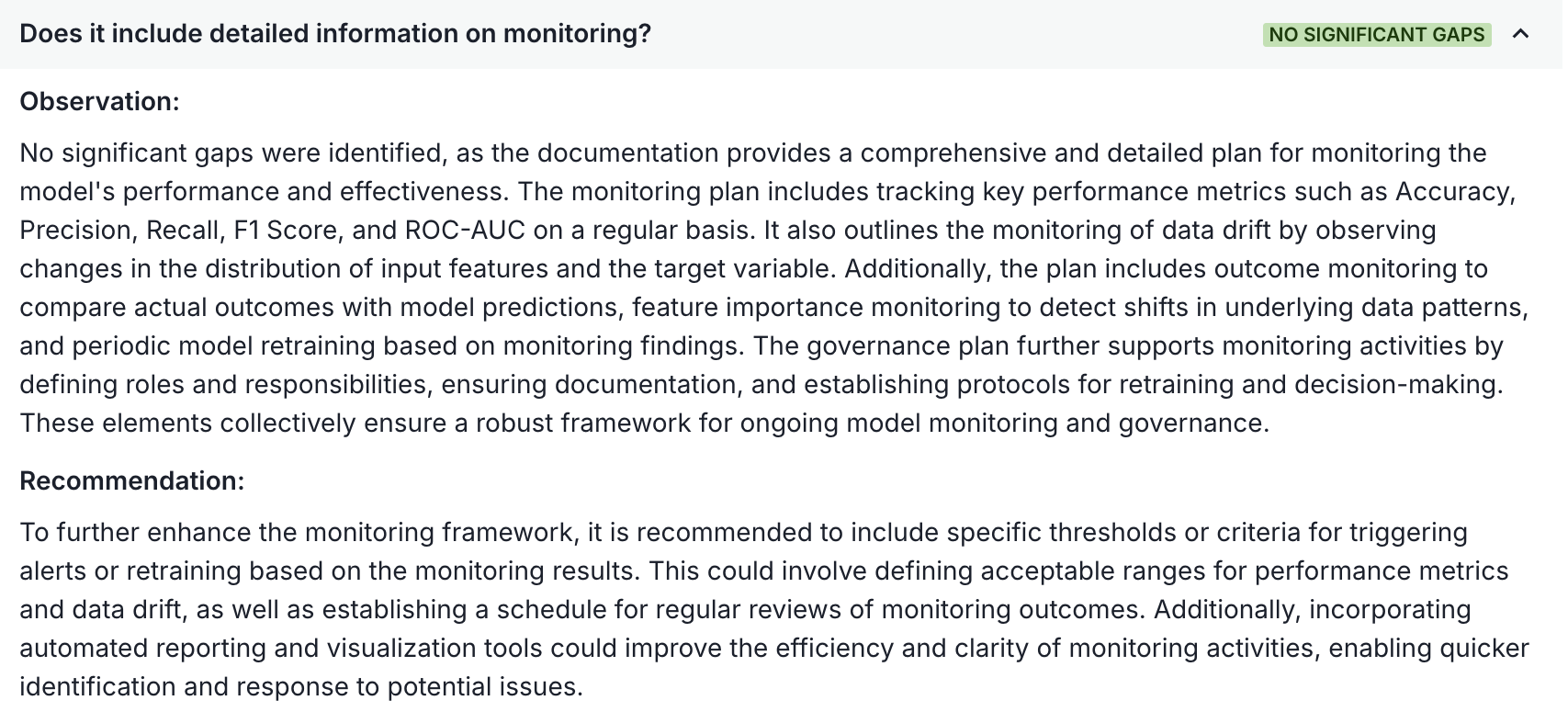
Use the feedback provided by the ValidMind Document Checker to review the appropriate sections of your document and decide what revisions should be made.
To export the results of the Document Checker for usage outside of the ValidMind Platform, follow these steps:
To export all questions, click Export All. To export only some questions, first select the questions you want by clicking their checkboxes, then click Export n selected, where n is the number of questions you selected.
In the Export Document Checker modal that appears, choose your file format:
Click Download File to download the exported file.
The exported file reflects the saved results of that run, including any artifacts created from it.10
Each check is saved automatically as a run, including one you stop early. Runs are private by default — only you can see your own runs until you publish them to your organization. Published runs are visible to everyone in your organization.
On your document, locate the Document Checker box on the right and click See Previous Runs.
Select a tab:
Click on a run to review its saved results.
Each run displays its name, when it was created or shared, the number of gaps and partial gaps identified, and the number of artifacts created from the run.11
11 For what gaps and partial gaps mean, see Review the observations.
A check that is still running can be stopped from My Inbox, from its progress notification, or from the Document Checker itself. You are asked to confirm first, and you choose whether to keep what it produced:
A stopped run is labelled as cancelled wherever it appears, so a partial check is never mistaken for a finished one:
To run the full check, start a new one. A stopped run is kept as history and is not resumed.
You can rename or delete your own private runs. Once a run is published to your organization, it can no longer be renamed or deleted.
Deleted runs are permanently removed, including their saved results.
To share a private run with your organization, open the run and click Publish to Organization.
After you publish a run:
Turn gaps identified by the Document Checker into artifacts that you can track and resolve in the ValidMind Platform:14
Open a published run.
Runs must be published to your organization before artifacts can be created from them.
Expand the question you want to create an artifact for, click Add Artifact, and select an artifact type.
Complete the artifact’s details.
The title and description are pre-filled from the question and its observation and recommendation, and can be edited before saving.
You can create one artifact per question for each run. After an artifact is created, it appears under the question in the run, and alongside your record’s other artifacts.15
Artifacts created from runs are traceable back to their source:
To export a run’s results to a .pdf file, open the run and click Export All, or select individual questions and click Export n selected.
The exported file reflects the saved results of that run, including any artifacts created from it.