Edit inventory fields
Edit individual detail fields on a record to ensure that record details are accurate and up-to-date.
Changes you make to inventory fields are automatically logged to the associated record’s activity.1
Prerequisites
Edit fields on individual records
In the left sidebar, click Inventory.
Select the type of
{Record}you want to edit fields for by clicking on {Record} Inventory.5Select a record or find your record by applying a filter or searching for it.6
On the record details page:
Select the Overview tab to click on highlighted fields to make changes, or to manage inventory record stakeholders.7
Select the Inventory Fields tab to click on additional fields to make changes:
- Enter keywords into the Search fields by title bar to narrow down your list of fields to the field you want to edit.
- Click on an attachment field header to manage files for that field.8
Click on the core fields in the right sidebar to make changes.
Click Save to apply your changes to the field.
Manage inventory record stakeholders
On the record details page, click Manage Stakeholders.
Toggle the stakeholder types you would like to display for that record.
Add at least one user to each of your desired custom stakeholder types to save the display settings for that record:
- Click on your inventory record stakeholder type.
- Select your users from the drop-down menu.
- Click Save to apply your changes.
On the record’s detail page, click on the inventory record stakeholder type10 you’d like to add users to.
Select your desired users from the drop-down menu.
To remove a user from a stakeholder type, click on the to the right of their name.
Click Save to apply your changes.
Insert field variables into a Long Text field
On a Long Text field that has rich text formatting enabled,11 you can reference other field values on the same record instead of retyping them — for example, composing a summary that stays in sync with the record’s owner, tier, and review dates.
On the record’s detail page, click on the Long Text field you want to edit.
In the rich text editor:
Click { } Insert Variable in the rich text editor toolbar.
Select the variable you want to reference from the Record drop-down menus:
- Core Fields — Default fields on the record.
{Group}— Custom fields, listed under the inventory field group they belong to.12- No Group — Custom fields that aren’t assigned to a group.
- Stakeholders — Assigned users, by record stakeholder type.13
Only fields available on the record type are listed. Artifact fields cannot be referenced,14 and a field can’t reference itself — the field you’re editing is left out of its own drop-down.
Click Save to apply your changes.
Variables resolve when the field is displayed, so a referenced value stays current as the record changes. Inventory exports contain the resolved values rather than the variables.15
Where a value can’t be shown, ValidMind displays a marker in place of the variable so that you can tell restricted or unresolvable content apart from an empty field:
- Access denied
- You don’t have read permissions for that field.16 The value is never sent to your browser.
- Circular reference
- Two or more fields reference each other in a loop.
- Exceeded max depth
- Expansion stopped at two levels. If you reference a Long Text field that itself contains variables, those nested variables resolve one level further — anything beyond that is not expanded.
Manage attachments on records
- Click on the header of your attachment field.
Click Select Files to add a file.
- Add a Note to the file by clicking on the menu, then select Add Note.
- Update a Note by making your changes in the existing text field.
Click Save to submit the upload.
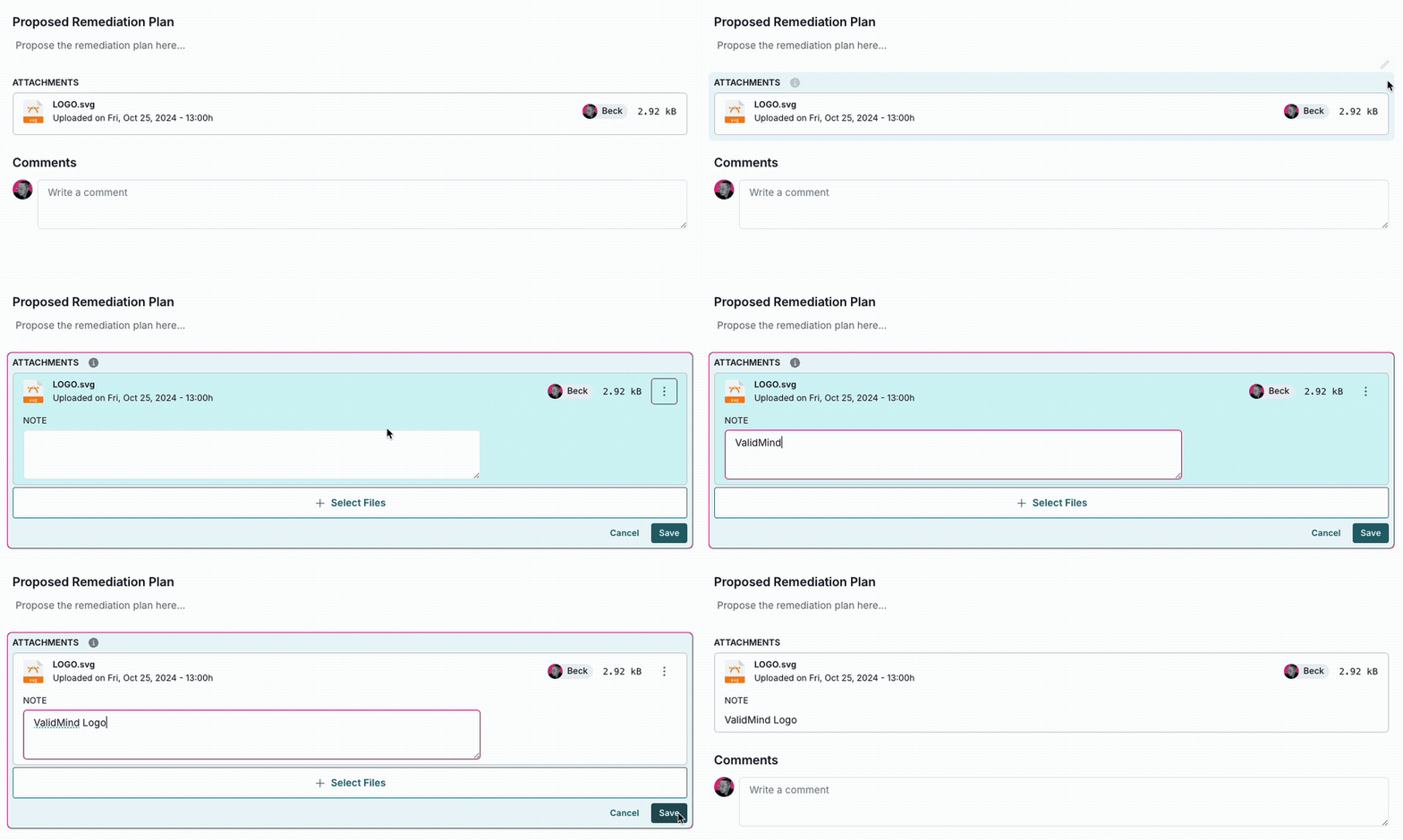
Adding attachment notes
- Click on the header of your attachment field.
Locate the file you want to remove, and click on the menu.
- Select Delete File to remove the file. Click Yes, Delete File to confirm permanent deletion of that file.
- Select Remove Notes to delete any notes. Removal of notes is saved automatically.
Click Save to apply the deletion.
After you save, the attachment or notes will be removed permanently.
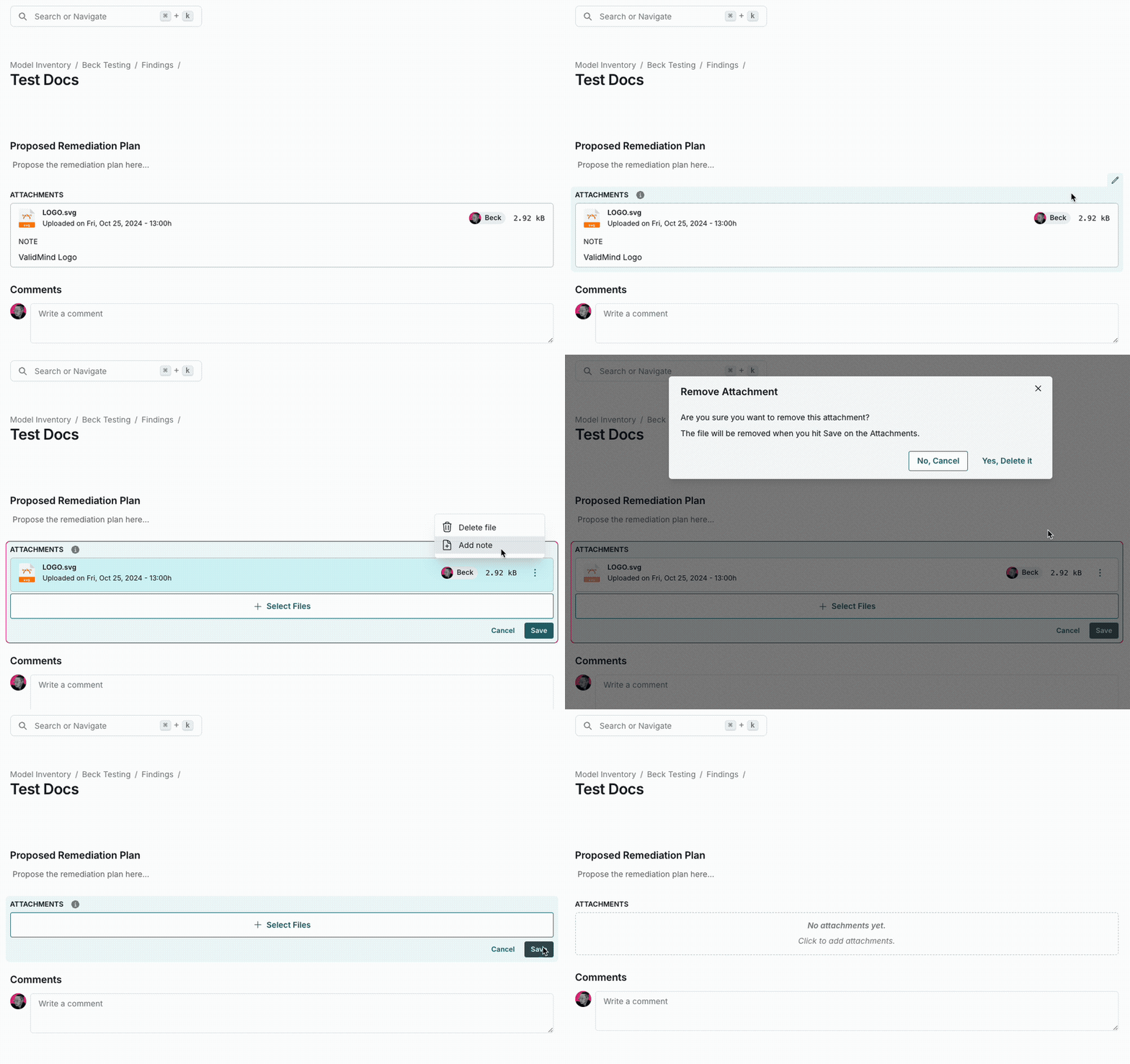
Deleting attachment notes and attachments
Edit fields in bulk for multiple records
In addition to editing individual fields on a per record basis, you can edit fields in bulk for a specific record type:
First, make sure you’re in table view for the record type you want to edit fields for.20
Select the records you want to edit fields for by:
- Clicking in the header column to select all records shown on that page.
- Clicking next to a specific record.
To view more records for selection, scroll down to the bottom of the table view and click Next .
At the bottom of the page, review the count of records selected to verify that the correct number of records are selected for editing, then click Edit.
Make your changes to the inventory fields for the selected records.
Click Continue {#} where
{#}is the number of fields to be edited.Review the changes to be applied to the inventory fields for the selected records to verify that the changes are correct, then click Save {#} Changes.