Map and assess evidence
Use ValidMind’s AI-assisted tools to streamline your validation workflow by automatically mapping relevant evidence to validation guidelines and drafting compliance assessments based on linked evidence.
Prerequisites
How does automatic evidence mapping and assessment work?
Validation reports require you to link supporting evidence to each guideline and write compliance assessments, a process that can be time-consuming when done manually across dozens of guidelines.
- Map Evidence
- Scans all available evidence from developers and validators, then suggests which items are relevant to each guideline. Instead of searching through evidence blocks yourself, you review AI-suggested matches and approve the ones that apply. Each suggestion includes a relevance score and explanation so you can make informed decisions.
- Assess Evidence
- Analyzes the linked evidence for a guideline and drafts a structured compliance assessment. The generated assessment includes a compliance conclusion, specific observations about gaps or issues, and a technical review of what the evidence demonstrates. You review and approve the draft, and then make edits if needed — saving time while maintaining control over the final content.
Both features are designed to accelerate validation without replacing your judgment. You always review and approve suggestions before they become part of the report.
Map evidence to guidelines
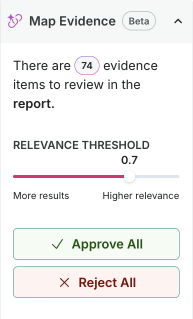
Map Evidence uses AI to suggest relevant evidence for each validation guideline, helping you find and link supporting documentation from both developers and validators.
In the left sidebar, click Inventory.
Select a record or find your record by applying a filter or searching for it.5
In the left sidebar that appears for your record, click Documents and select the Latest tab.6
Click on a Validation type file.7
You can map evidence at three levels:
Click Map Evidence in the right sidebar to expand the mapping panel for the entire report.
Sections include subsections with guidelines, and a risk assessment summary at the top of the page.
- Click on a section of the validation report to expand that section.
- Click Map Evidence at the top of the page to open the mapping panel for that section.
Guidelines are organized into subsections under a parent section.
- Click on a section of the validation report to expand that section.
- In any subsection, click Map Evidence to open the mapping panel for that guideline.
Configure the mapping options:
- Toggle the evidence type toggle to include evidence from the selected types:
- Developer Evidence — Include evidence logged on the Development document associated with the record.8
- Validator Evidence — Include evidence logged on the current validation report.
- Adjust the relevance threshold slider — lower values return more results while higher values show only the most relevant matches.
- Toggle the evidence type toggle to include evidence from the selected types:
Click Map Evidence to start the mapping.
If this is your first time running Map Evidence, review the information presented to you explaining the mapping process, then click Map Evidence to run the mapping.9
9 To hide the additional information on mapping modal for future runs, select the Don’t show this again checkbox.
When mapping is complete, the # of evidence items to review is displayed. Review the evidence items and approve or reject the suggestions as needed.
Review and approve mapped evidence
After running Map Evidence, you can review and approve suggestions at four levels:
If you have run mapping for the entire report, you can review and approve suggestions at the entire report level.
The Map Evidence panel in the right sidebar for your validation report shows how many items need review across the entire report — click to expand the panel if it is collapsed:
- Select Approve All to link all suggested evidence across all guidelines, or Reject All to dismiss all suggestions.
- Click into any section of the report with approved mapped evidence to confirm that any approved evidence appears in the Evidence panel for guidelines as expected.
- To re-run mapping with different settings, click Remap Evidence.
- (Optional) Adjust the relevance threshold or change which evidence types to include, then generate new suggestions.
Sections include subsections with guidelines, and a risk assessment summary at the top of the page. If you have run mapping for an entire section, you can review and approve suggestions at the section level:
Click on a section of the validation report to expand that section.
Click Map Evidence at the top of the page to open the mapping panel for that section:
- Select Approve All to link all suggested evidence for guidelines in that section, or Reject All to dismiss all section suggestions.
- Confirm that any approved evidence appears in the Evidence panels for the guidelines in that section as expected.
- To re-run mapping with different settings, click Remap Evidence.
- (Optional) Adjust the relevance threshold or change which evidence types to include, then generate new suggestions.
- Select Approve All to link all suggested evidence for guidelines in that section, or Reject All to dismiss all section suggestions.
Guidelines are organized into subsections under a parent section. If you have run mapping for an individual guideline, you can review and approve suggestions at the guideline level:
Click on a section of the validation report to expand that section.
In any subsection, click Map Evidence to open the mapping panel for that guideline:
- Select Approve All to link all suggested evidence for that guideline, or Reject All to dismiss all guideline suggestions.
- Confirm that any approved evidence appears in the Evidence panel for that guideline as expected.
- To re-run mapping with different settings, click Remap Evidence.
- (Optional) Adjust the relevance threshold or change which evidence types to include, then generate new suggestions.
- Select Approve All to link all suggested evidence for that guideline, or Reject All to dismiss all guideline suggestions.
If you have run mapping at any level, you can review and approve individual suggestions at the individual suggestion level:
Click on a section of the validation report to expand that section.
In any subsection, click Evidence to expand the evidence panel for that guideline.
Review individual evidence suggestions on the Developer Evidence or Validator Evidence tabs:
- Each item shows the evidence block name and a relevance score.
- Click See Relevance Analysis to view why the evidence was suggested.
- Click Approve to link an individual item to the guideline.
- Click Reject to dismiss an individual suggestion.
Confirm that any approved evidence appears in the Evidence panel for that guideline as expected.
Assess evidence for compliance
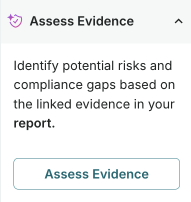
Assess Evidence uses AI to analyze the linked evidence and generate a structured compliance assessment, identifying potential risks and compliance gaps.
In the left sidebar, click Inventory.
Select a record or find your record by applying a filter or searching for it.10
In the left sidebar that appears for your record, click Documents and select the Latest tab.11
Click on a Validation type file.12
You can assess evidence for compliance at three levels:
Click Assess Evidence in the right sidebar to expand the evidence assessment panel for the entire report.
Sections include subsections with guidelines, and a risk assessment summary at the top of the page.
- Click on a section of the validation report to expand that section.
- Click Assess Evidence at the top of the page to open the evidence assessment panel for that section.
Guidelines are organized into subsections under a parent section.
- Click on a section of the validation report to expand that section.
- In any subsection, click Assess Evidence to open the evidence assessment panel for that guideline.
Click Assess Evidence to run an analysis on the linked evidence and generate an Evidence Assessment containing:
- Guideline Assessment — A compliance conclusion indicating whether the guideline requirements are fully met, partially met, or not met, with an explanation of the evidence quality.
- Validation Observations — Specific findings about gaps or issues in the evidence, with each observation covering a single concern and suggesting actions for developers.
- Evidence Review — A detailed analysis of what the evidence demonstrates, including references to specific test outputs, documentation, and any limitations.
If this is your first time running Assess Evidence, review the information presented to you explaining the assessment process, then click Assess Evidence to run the assessment.13
13 To hide the additional information on assessment modal for future runs, select the Don’t show this again checkbox.
When evidence assessment is complete, the # of assessment items to review is displayed. Review the assessment items and approve or reject the suggestions as needed.
Review and approve evidence assessments
After running Assess Evidence, you can review and approve assessments at three levels:
If you have run evidence assessment for the entire report, you can review and approve suggestions at the entire report level.
The Assess Evidence panel in the right sidebar for your validation report shows how many items need review across the entire report — click to expand the panel if it is collapsed:
- Select Approve All to link all suggested assessments across all guidelines, or Reject All to dismiss all suggestions.
- Click into any section of the report with approved assessments to confirm that any approved assessments appear in the Evidence Assessment panel for guidelines as expected.
- To re-run the assessment, click Reassess Evidence.
Sections include subsections with guidelines, and a risk assessment summary at the top of the page. If you have run mapping for an entire section, you can review and approve suggestions at the section level:
Click on a section of the validation report to expand that section.
Click Assess Evidence at the top of the page to open the evidence assessment panel for that section:
- Select Approve All to link all suggested assessments for guidelines in that section, or Reject All to dismiss all section suggestions.
- Confirm that any approved assessments appear in the Evidence Assessment panels for the guidelines in that section as expected.
- To re-run the assessment, click Reassess Evidence.
- Select Approve All to link all suggested assessments for guidelines in that section, or Reject All to dismiss all section suggestions.
Guidelines are organized into subsections under a parent section. If you have run mapping for an individual guideline, you can review and approve suggestions at the guideline level:
Click on a section of the validation report to expand that section.
In any subsection, click Evidence Assessment to expand the evidence assessment panel for that guideline:
- Click Approve to approve the assessment.
- Click Reject to dismiss the assessment.
- To re-run the assessment, click Reassess Evidence.