Assess compliance
Use the ValidMind Platform to assess compliance of your models with guidelines based on analyzing evidence and artifacts.
Use AI-assisted tools to map relevant evidence to validation guidelines and generate compliance assessments based on linked evidence. These features streamline the validation workflow by reducing manual effort while maintaining quality.
Validation reports require you to link supporting evidence to each guideline and write compliance assessments, a process that can be time-consuming when done manually across dozens of guidelines.
Both features are designed to accelerate validation without replacing your judgment. You always review and approve suggestions before they become part of the report.
Map Evidence uses AI to suggest relevant evidence for each validation guideline, helping you find and link supporting documentation from both developers and validators.
In the left sidebar, click Inventory.
Select the model you are validating.4
In the left sidebar, click Validation to open the validation report.
Navigate to a section and expand the Evidence panel.
Click Map Evidence.
Configure the mapping options:
Click Map Evidence to run the AI mapping.
The panel displays how many evidence items are available to review for each guideline in the section.
After running Map Evidence, you can review and approve suggestions at three levels:
For the entire report:
Open the validation report and look at the right sidebar.
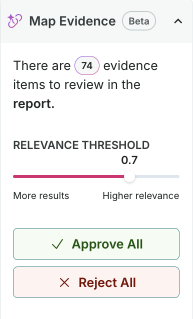
The Map Evidence panel shows how many items need review across the entire report.
Use Approve All to link all suggested evidence across all guidelines, or Reject All to dismiss all suggestions.
To re-run mapping with different settings, click Remap Evidence. This lets you adjust the relevance threshold or change which evidence types to include, then generate new suggestions.
For an entire section:
Navigate to a specific section in the validation report.
In the section header, click Map Evidence to open the mapping panel.
Use Approve All to link all suggested evidence for guidelines in that section, or Reject All to dismiss all section suggestions.
To re-run mapping with different settings, click Remap Evidence.
For individual guidelines:
Navigate to a specific section in the validation report.
Expand the Evidence panel for a guideline.
Click Map Evidence to open the mapping panel for that guideline.
Review individual evidence suggestions:
Or use Approve All / Reject All to handle all suggestions for that guideline at once.
Approved evidence appears in the Evidence panel for that guideline, organized by evidence type (Developer Evidence or Validator Evidence).
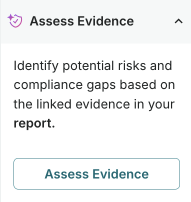
Assess Evidence analyzes the linked evidence and generates a structured compliance assessment, identifying potential risks and compliance gaps.
Navigate to a section that has linked evidence.
Expand the Evidence panel.
Click Assess Evidence.
The AI analyzes the linked evidence and generates an Evidence Assessment containing:
Guideline Assessment — A compliance conclusion indicating whether the guideline requirements are fully met, partially met, or not met, with an explanation of the evidence quality.
Validation Observations — Specific findings about gaps or issues in the evidence, with each observation covering a single concern and suggesting actions for developers.
Evidence Review — A detailed analysis of what the evidence demonstrates, including references to specific test outputs, documentation, and any limitations.
The panel displays how many assessments are available to review.
After running Assess Evidence, you can review and approve assessments at three levels:
For the entire report:
Open the validation report and look at the right sidebar.
The Assess Evidence panel shows how many assessments need review across the entire report.
Use Approve All to accept all generated assessments, or Reject All to dismiss all assessments.
For an entire section:
Navigate to a specific section in the validation report.
In the section header, click Assess Evidence to open the assessment panel.
Use Approve All to accept all generated assessments for that section, or Reject All to dismiss them.
To regenerate assessments with updated evidence, click Re-assess Evidence.
For individual guidelines:
Navigate to a specific section in the validation report.
Expand the Evidence Assessment panel for a guideline. Assessments pending review show a Review status.
Review the generated assessment content.
Click Approve to accept the assessment, or Reject to dismiss it.
After approving, you can edit the assessment content as needed — changes are auto-saved.
To regenerate an assessment, click Reassess Evidence to run the AI analysis again with any updated evidence.