• Documentation
    • About ​ValidMind
    • Get Started
    • Guides
    • Support
    • Releases

    • ValidMind Library
    • Python API
    • Public REST API

    • Training Courses
  • Log In
  1. 25.08 Release notes
  • Installing ​ValidMind
  • Release notes
  • ​ValidMind systems access
  • Troubleshooting and support

  • Deployment
  • 1 — Prepare your environment
  • 2 — Pull the container images
  • 3 — Pull the Helm chart
  • 4 — Configure your Helm chart
  • 5 — Configure LiteLLM
  • 6 — Install or upgrade via Helm chart
  • 7 — Complete the initial setup
  • 8 — Verify your installation

  • Authentication
  • Configuring authentication
  • Configure local authentication
  • Configure OIDC integration
  • Authenticate with Entra
    • Configure frontend environment variables for Entra
    • Entra manifest JWT configuration
    • Configure single sign-on (SSO)
  • Supporting multiple OIDC providers

  • Administering
  • Operating ​ValidMind
  • Migrate to vmconfig.toml (26.02)
  • View ValidMind configuration
  • Configure AI model settings
  • Monitoring your deployment
  • Configuring email services
    • Configure email provider
    • Customize email templates

  • Reference
  • ​ValidMind Admin REST API
  • ValidMind configuration

  • Security advisories
  • VM-SA-2026-01
  • VM-SA-2026-02

On this page

  • Backend
    • Enhancements
      • Implement notifications via UI
      • Custom field grouping for models and findings
      • Enhance security by disallowing loops and recursion in custom formulas
      • Add vm-tools container image for debugging
      • Retrieve Entra groups from JWT token
    • Bug fixes
      • Fix issue with offline files not returning properly
      • Enhance error handling for organization roles endpoint
      • Add descriptions to roles during organization creation
  • Frontend
    • Highlights
      • Add support for PDF documents in Document Checker
      • Add email alerts for metric threshold breaches
      • Support for new document types
      • Enhanced Document Checker for regulatory compliance
      • Add copy node ID feature to NodeBox component
    • Enhancements
      • Add usage dashboard to admin portal for model and user insights
      • Implement notifications via UI
      • Custom field grouping for models and findings
      • Add ability to search and filter attributes in settings
      • Add custom fields for findings
      • Allow admin to select OIDC provider when adding users
      • Add UI for managing admin API credentials
      • Add support for Entra IDP in multi-OIDC mode
    • Other changes
      • Loops are not allowed in custom formulas
      • Delete workflow no longer considers deleted models when warning you
    • Bug fixes
      • No need to select an OIDC when creating users
      • Fix analytics rendering issue with 0 values in widgets
  • Installation
    • Enhancements
      • Add resource limits for Keycloak and Redis in Helm chart
      • Allow annotations on keycloak ingress
    • Documentation
      • Enhance OIDC configuration for multiple providers and improved security
    • Other changes
      • Add TLS and support for multiple ingresses
      • Add Helm template for vm-tools debugging pod
  • Documentation
    • Highlights
      • Revamped Administrator Fundamentals course with new modules
    • Enhancements
      • Enhance administrator quickstart documentation for ValidMind setup
      • Create rebrandable docs site with Kubernetes manifest configuration
  • Edit this page
  • Report an issue

25.08 Release notes

cmvm
25.08
release
Published

July 31, 2025

This release includes support for PDF documents in Document Checker, email alerts for metric threshold breaches, enhanced document management in the model inventory system, improvements to the Document Checker, and more.

Backend

Enhancements

Implement notifications via UI

We have introduced a comprehensive notifications feature to enhance your experience by displaying updates for specific events directly within the application. This keeps you informed about important changes and activities through the user interface.

See the release notes for the frontend for more details.

Custom field grouping for models and findings

You can now organize custom fields into groups with full backend support, including create, read, update, and delete (CRUD) operations. This update ensures proper validation and history tracking. Groups are supported for both models and findings, following consistent API patterns.

The model-specific layout system has been replaced with a generic, type-based page layout system. This allows you to customize layouts for different entity types independently, supporting both models and findings.

Duplicate code between model and finding schemas has been consolidated using a new base mixin pattern. This enhances maintainability and ensures consistent behavior across entity types.

New REST endpoints are available for group management (/schema/groups) and unified page layout management (/page-layout/{type}). These endpoints come with full OpenAPI documentation and error handling.

See the release notes for the frontend for more details.

Enhance security by disallowing loops and recursion in custom formulas

This update enhances the security of custom formulas by preventing the use of loops and recursion. To ensure a safer execution environment, the following built-in functions are now explicitly prohibited in custom formulas:

  • "eval"
  • "exec"
  • "compile"
  • "open"
  • "__import__"
  • "input"
  • "globals"
  • "locals"
  • "vars"
  • "dir"
  • "help"
  • "id"

Add vm-tools container image for debugging

This update adds a new Docker container image that bundles a set of network and diagnostic tools commonly required for Kubernetes debugging.

Retrieve Entra groups from JWT token

You can now retrieve Entra groups directly from the JWT (JSON Web Token), improving the handling of OIDC (OpenID Connect) claims for multiple identity providers.
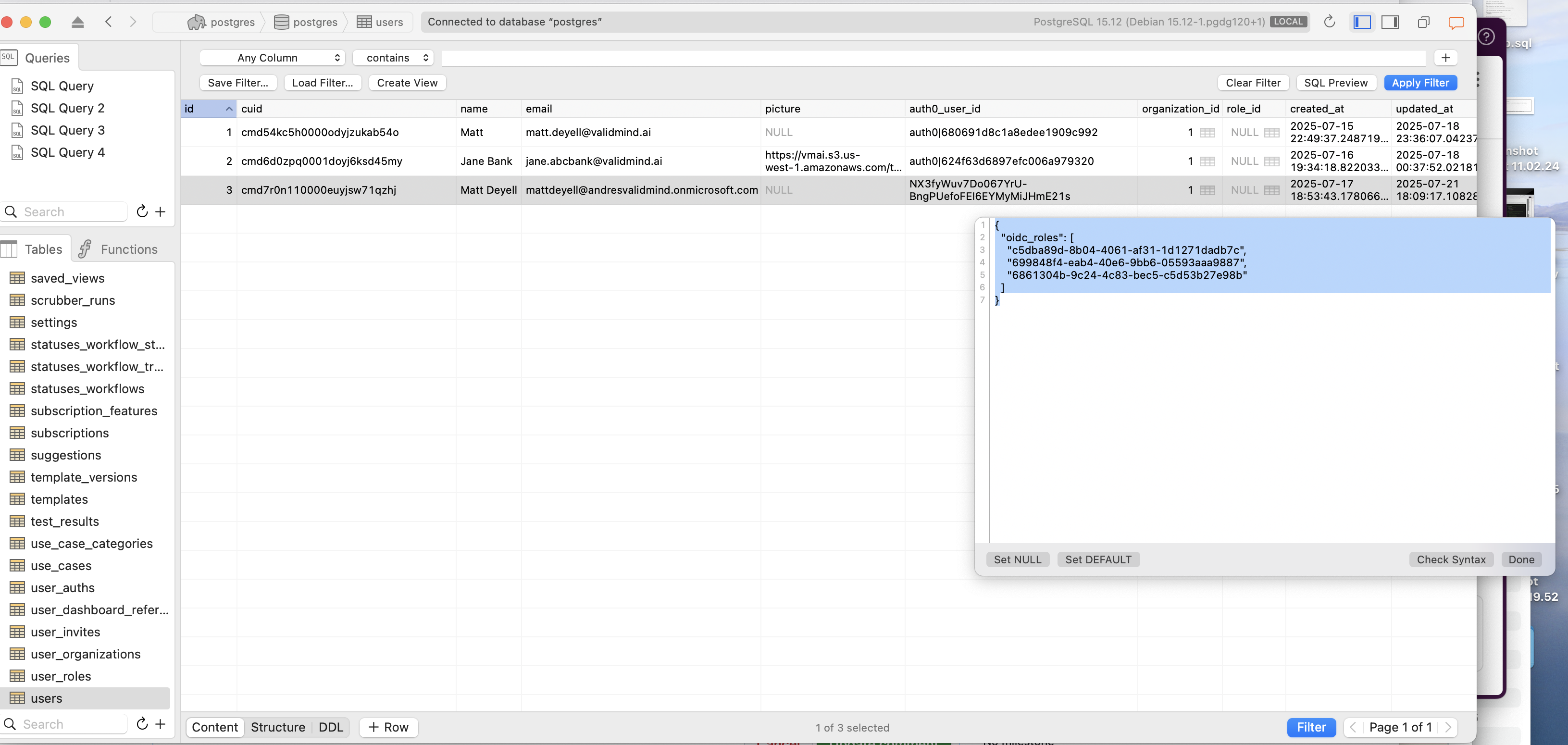
A database management interface displaying a table with columns labeled ID, Name, Email, Picture, Auth User ID, Organization ID, and Created At. The table contains three rows of data with visible values under each column. Above the table, there are tabs labeled Data, Columns, and Create View, with the Data tab currently selected. On the right side, a pop-up window shows a JSON object with keys and values, positioned over the table. The interface has a light gray background with a menu bar at the top, including options like File, Edit, and View.

Bug fixes

Fix issue with offline files not returning properly

This update improves the serialization logic for template models by enhancing the handling of offline templates.

Enhance error handling for organization roles endpoint

This update enhances error handling for the organization roles endpoint by requiring the code parameter during AuthError initialization. You will now receive more specific error messages, which help diagnose and resolve authentication issues. For instance, if a user lacks administrative privileges, the error message will clearly state: [error] Authentication error: User is not an admin.

Add descriptions to roles during organization creation

We have introduced a new default role, Basic User, and ensured that descriptions are correctly added to user roles during organization creation.
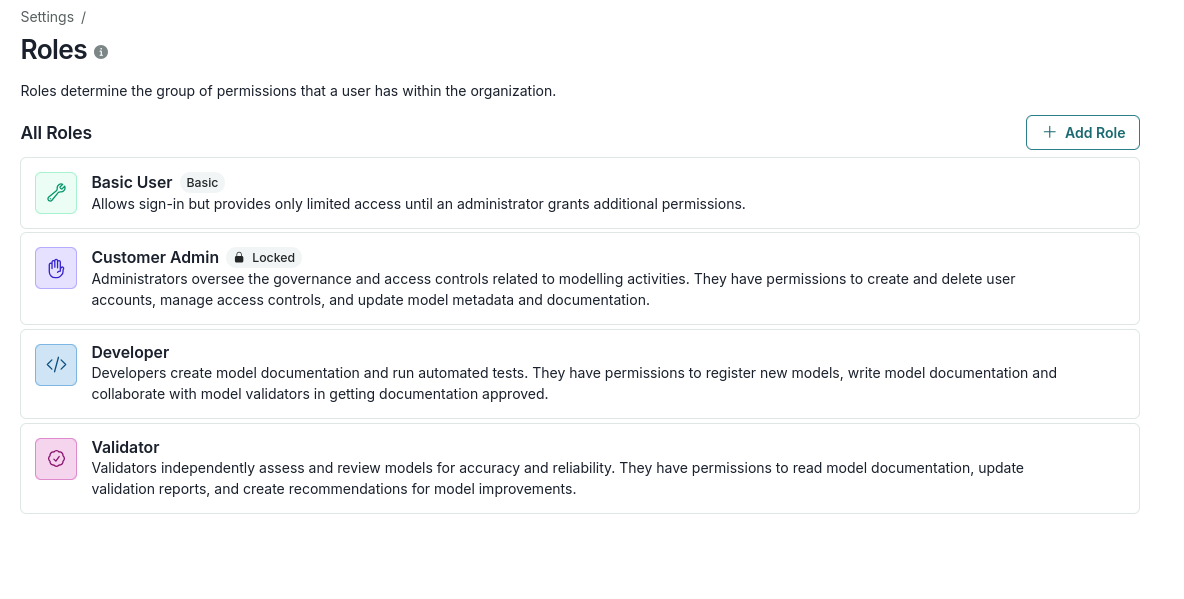
A settings interface titled Roles displays a list of user roles within an organization. The interface includes a header with the title Roles and a description about permissions, followed by a blue Add Role button on the right. Below, there are four role cards: Basic User, Customer Admin, Developer, and Validator. Each card contains a role name, a brief description, and a colored icon on the left; Basic User has a green icon, Customer Admin has a purple icon, Developer has a blue icon, and Validator has a pink icon. The Customer Admin role card also features a Locked label next to the role name.

Frontend

Highlights

Add support for PDF documents in Document Checker

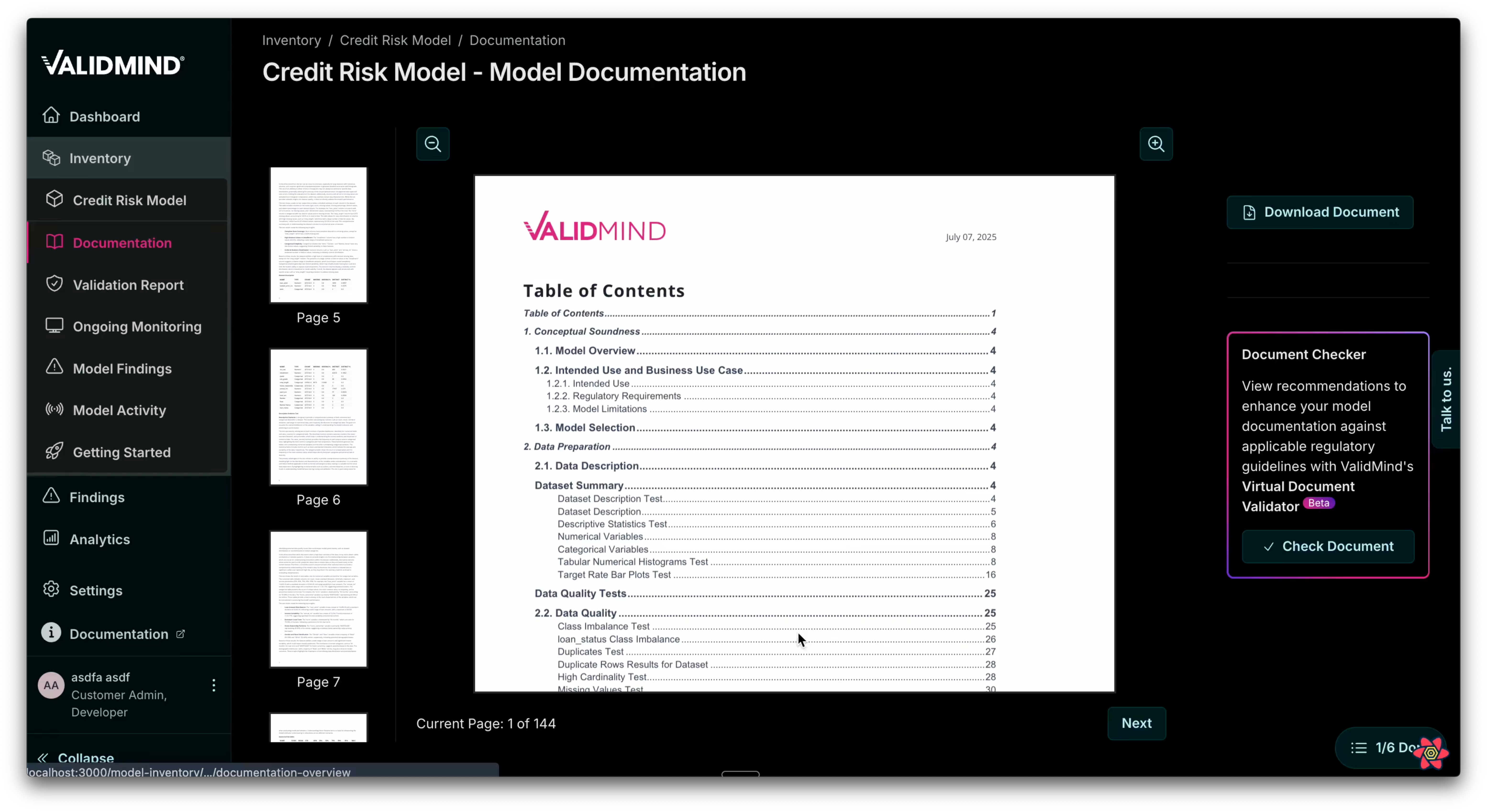
You can now use our Document Checker with PDFs for model documentation: Check documentation for compliance

The Document Checker is a compliance tool that reviews technical documentation against a selected regulatory standard.Use the checker to identify gaps, generate actionable recommendations, and focus your efforts on areas that require attention.
Video demonstration

Video demonstration

A screenshot of the Document Checker in the sidebar with a button labelled Check Document.

Add email alerts for metric threshold breaches

If a metric does not meet the passed requirement, an email notification is sent now to model stakeholders: Set thresholds and alerts

An email interface displays a notification from ValidMind with a subject line stating Automated ValidMind Alert: Threshold Breach Detected in [Test] Customer Churn for metric GINI Score. The email body contains a centered white box with a gray border, titled ValidMind in pink at the top. Inside, it details Alert Details with Model: [Test] Customer Churn, Metric: GINI Score, and Recorded Value: 0.75. Below, it lists Configured Thresholds with High Risk: 0.7 and Low Risk: 0.6, followed by a message indicating no immediate response is required. A green button labeled View Model is centered at the bottom. The footer contains ValidMinds address and copyright information in gray text.

Support for new document types

This update improves document management in the model inventory system. You can now create various document types beyond standard model documentation, validation reports, and ongoing monitoring documentation. This includes adding and managing custom document types tailored to your specific needs: Manage document types

Document hub
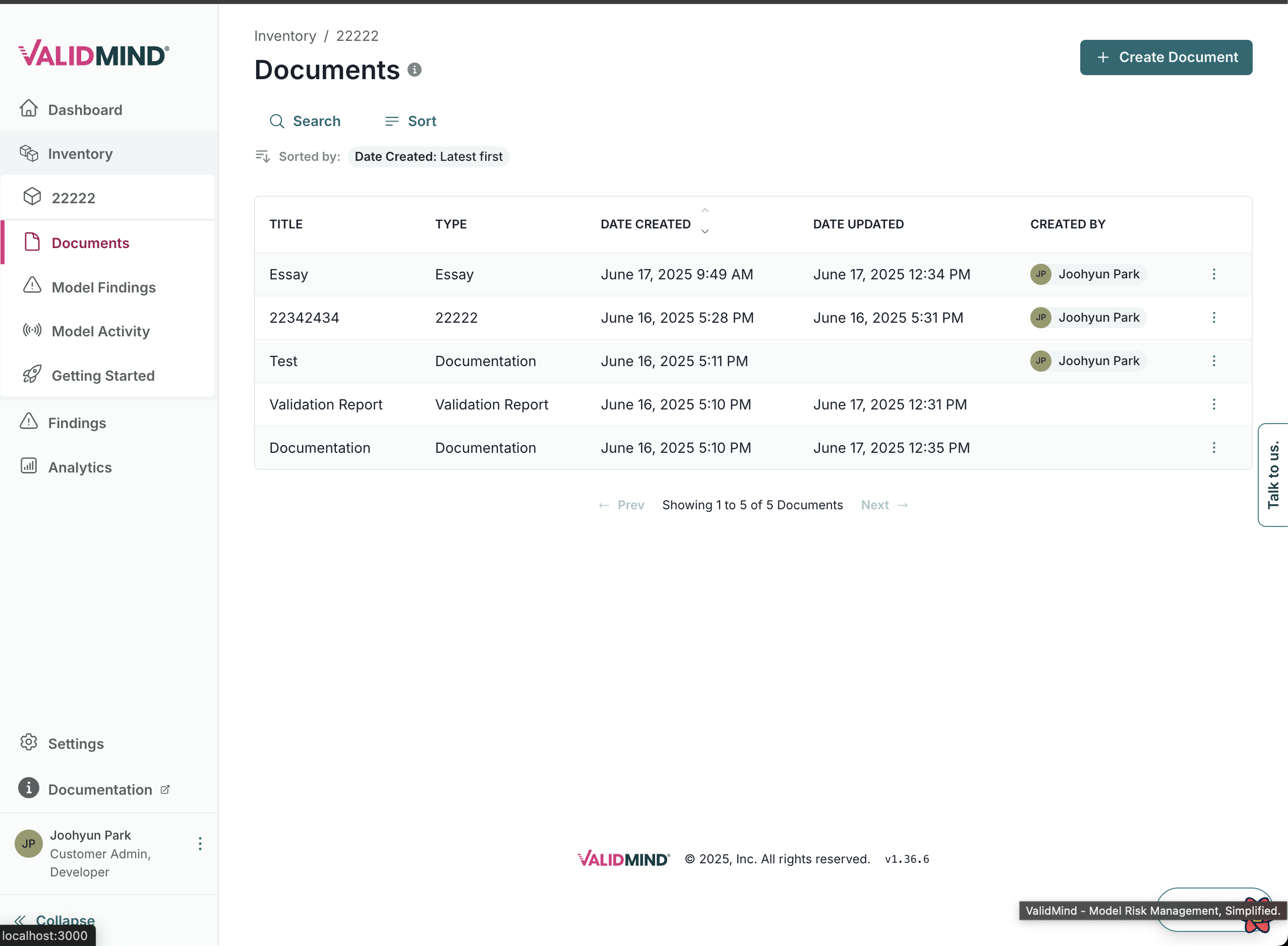
A web interface titled Documents displays a list of document entries in a table format. The table includes columns for Title, Type, Date Created, Date Updated, and Created By, with entries such as Essay and Test, and dates in June 2025. The Created By column lists the name Jobunyn Park. Above the table, there are options to search and sort, with sorting set to Date Created: Latest First. A green Create Document button is located in the top right corner. The left sidebar contains navigation links including Dashboard, Inventory, Documents, Model Activity, Settings, and Feedback, with Documents highlighted in red.

Create document

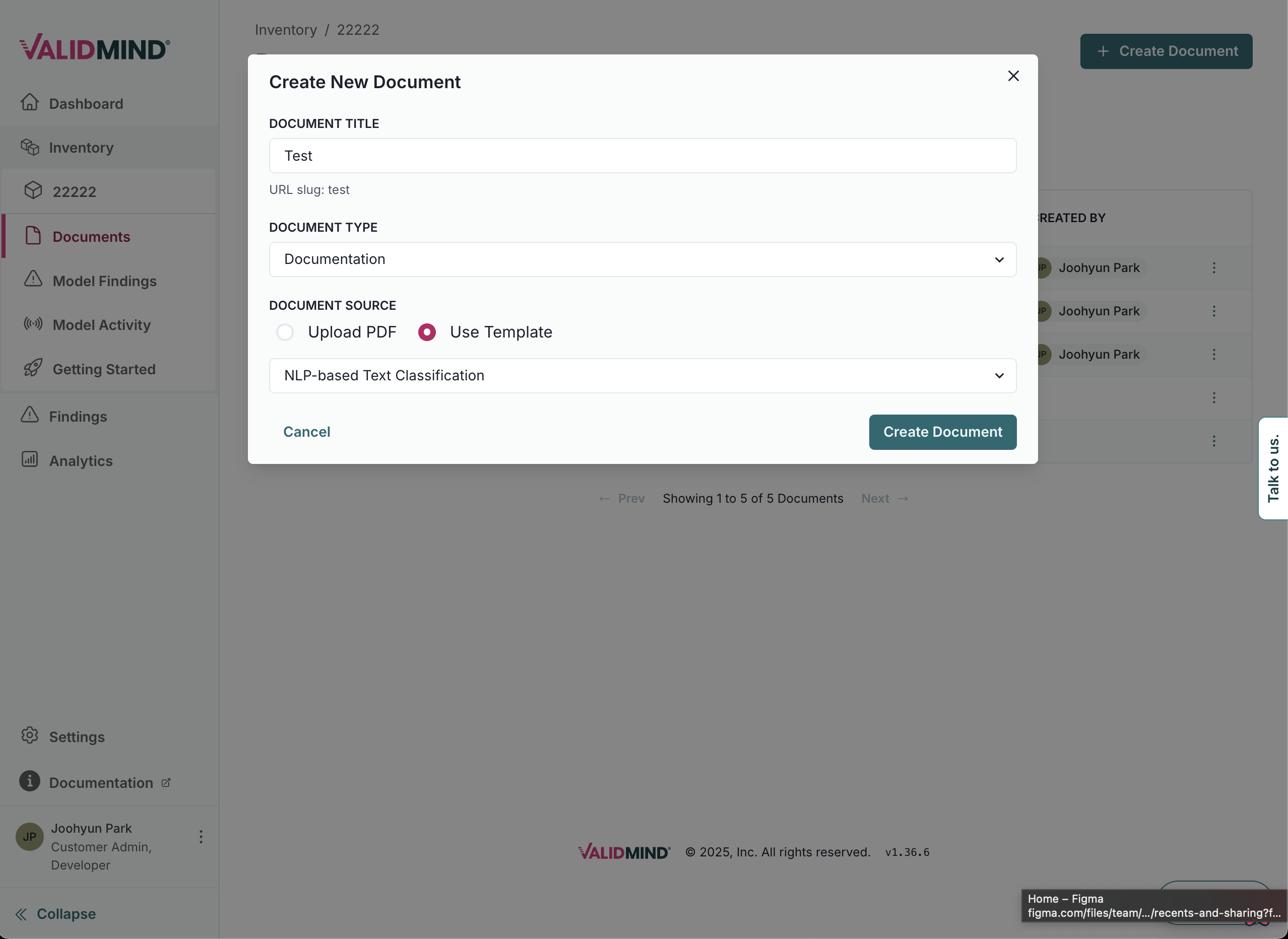
A web interface displaying a modal titled Create New Document in the center. The modal contains fields for Document Title with the text Test, and Document Type with a dropdown showing Documentation. Below, there are options for Document Source with radio buttons for Upload PDF and Use Template, with Use Template selected. At the bottom right of the modal is a teal Create Document button. The background shows a sidebar on the left with menu items including Inventory, Documents, and Analytics, and a list of documents with columns for Name and Created By.

Custom document

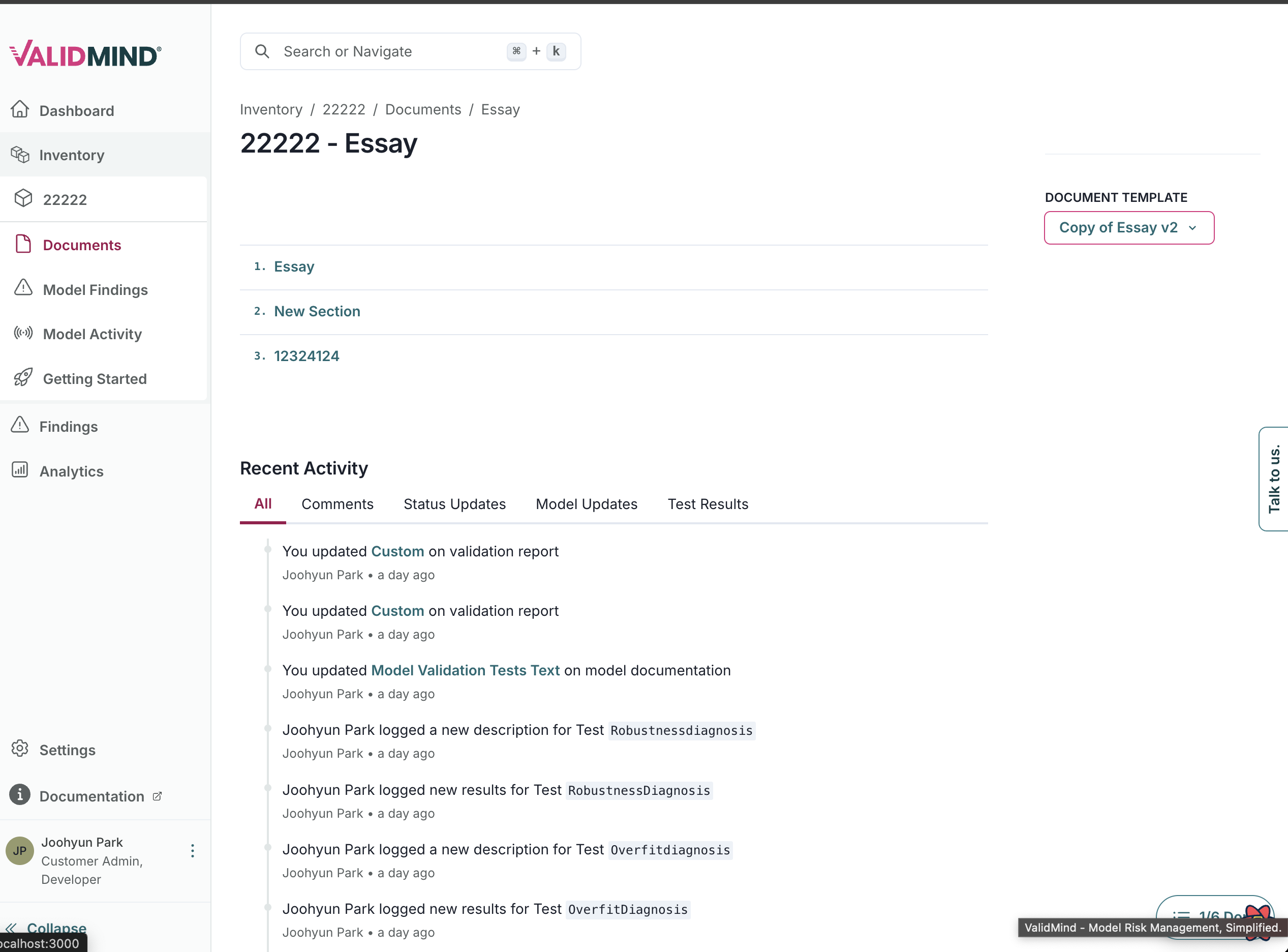
The image shows a web interface for a document management system with a sidebar on the left and a main content area on the right. The sidebar contains navigation items including Dashboard, Inventory, Documents, Model Findings, Model Activity, and Getting Started, with Documents highlighted in red. The main content area displays a document titled 22222 - Essay with sections labeled Essay, New Section, and 1234214, and a Recent Activity section below showing a list of user actions with timestamps. The top right corner has a document template section with a button labeled Copy of Essay. The interface uses a clean layout with a white background and black text, with red accents for highlights and active elements.

Enhanced Document Checker for regulatory compliance

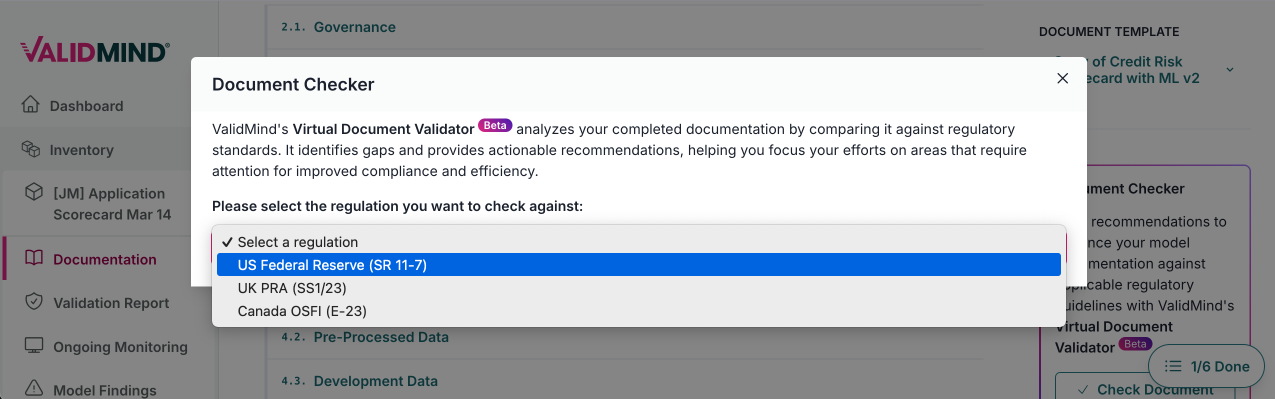
We have introduced a new version of the Document Checker feature that provides a more interactive and granular approach to regulatory compliance analysis: Check documentation for compliance.

The enhanced interface now presents validation results in a question-based format, allowing users to explore specific regulatory requirements individually rather than viewing a single document. This update also includes real-time streaming of analysis results during generation and improved user experience with expandable sections for detailed findings and recommendations.
Document Checker

Document Checker

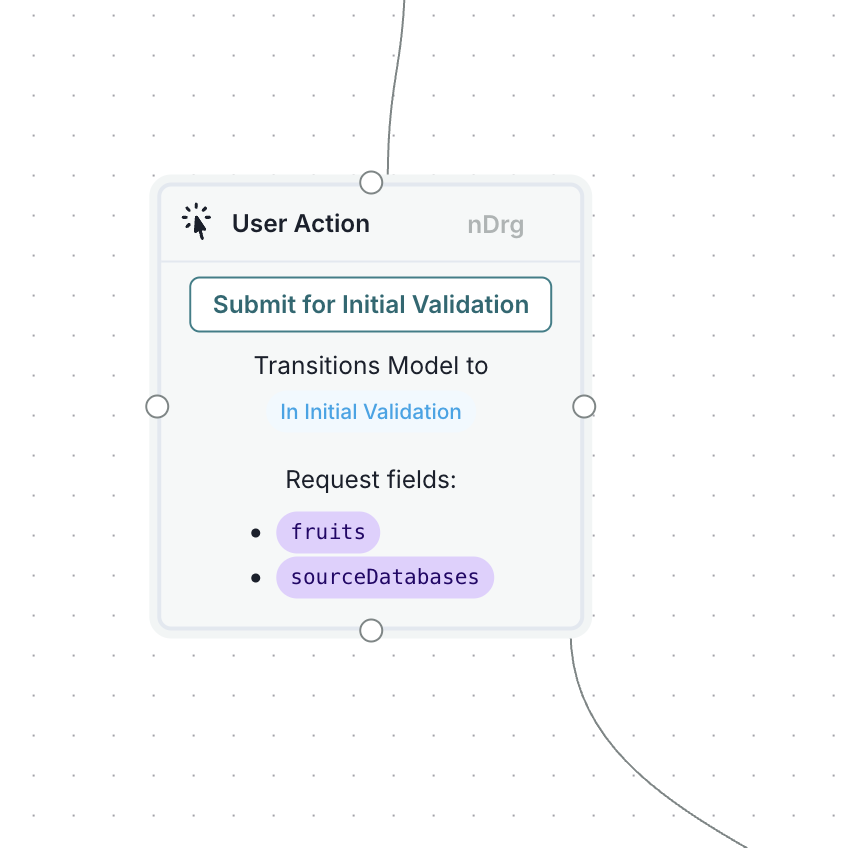
Add copy node ID feature to NodeBox component

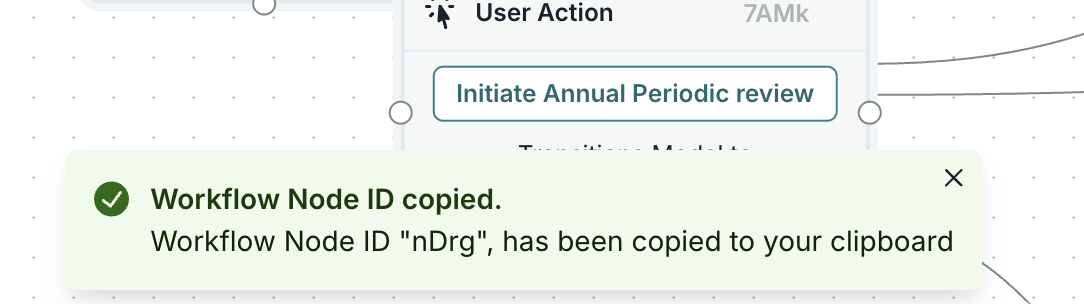
You can now easily copy workflow node IDs directly from the workflow editor. Click on the node ID in each workflow node's header to copy it to your clipboard. This feature makes it easier to reference specific nodes in documentation or during debugging: Working with model workflows
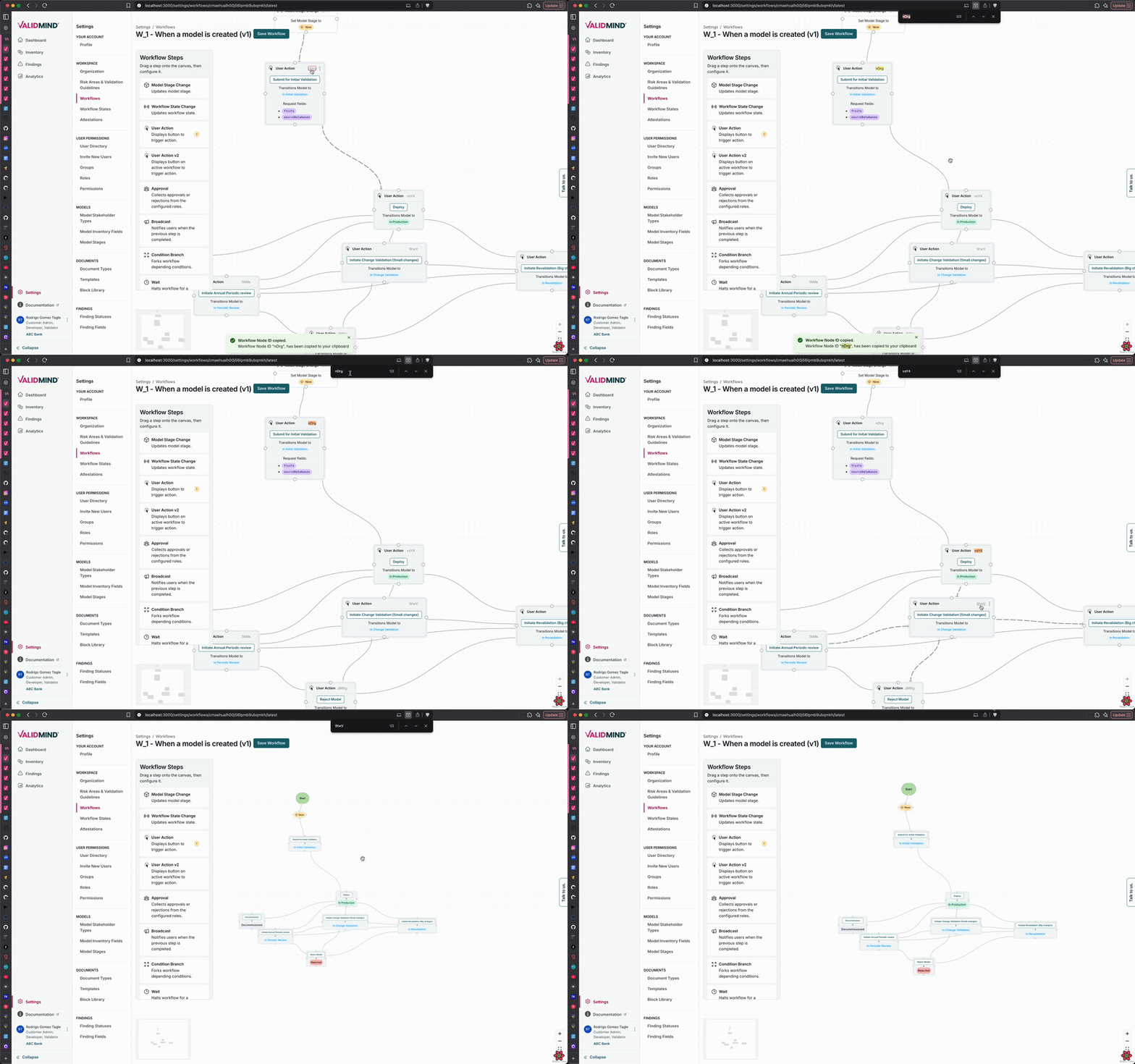
A workflow interface titled When a model is created (v1) with a Save Workflow button in the top right corner. The left panel lists menu items such as Dashboard, Projects, and Workflow Steps, with Workflow highlighted in pink. The main section displays a flowchart with nodes connected by arrows, showing steps like Select Model to Train and Initiate Feature Extraction, each with options like Request Review and Approve. Nodes are color-coded, with blue indicating active steps and gray for conditional actions. The flowchart illustrates the sequence and decision points in the workflow process.

Workflow steps for model creation

A flowchart element titled User Action with a light gray background and a dotted border is centered on a grid. It contains a green button labeled Submit for Initial Validation. Below the button, blue text reads Transitions Model to In Initial Validation. The section titled Request fields lists two items: fruits and sourceDatabases, both in purple with bullet points. The layout is connected by a thin line extending from the top and bottom of the element, indicating flow direction.

A notification message appears at the bottom of the screen with a light green background, indicating that a workflow node ID has been successfully copied. The message includes a green checkmark icon on the left, followed by the text Workflow Node ID copied. Below, it states Workflow Node ID nDrg, has been copied to your clipboard. Above the notification, part of a user interface is visible, showing a section titled User Action with a button labeled Initiate Annual Periodic review. The interface has a dotted grid background with connecting lines, suggesting a flowchart or workflow diagram.

Enhancements

Add usage dashboard to admin portal for model and user insights

You can now access a new usage dashboard in the admin interface. It provides detailed insights into model, user, and organization data. This information is also available through the admin API.
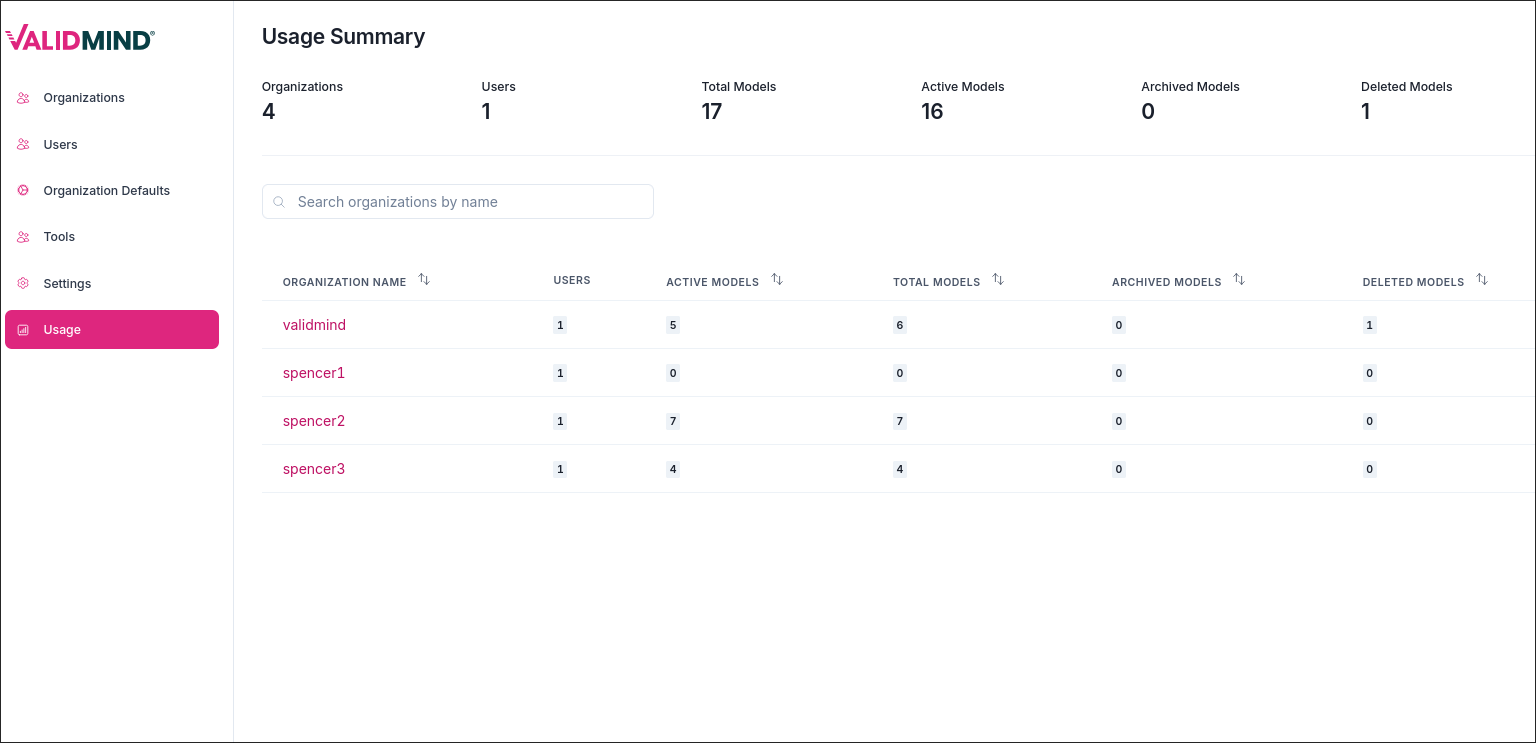
A web interface titled Usage Summary displays a table with columns labeled Organization Name, Users, Active Models, Total Models, Archived Models, and Deleted Models. The table contains four rows with organization names validmind, spencer1, spencer2, and spencer3, each row showing corresponding numerical data under each column. Above the table, summary statistics are presented: Organizations 4, Users 1, Total Models 17, Active Models 16, Archived Models 0, and Deleted Models 0. On the left sidebar, a vertical menu lists options including Organizations, Users, Organization Defaults, Tools, and Usage, with Usage highlighted in pink. The interface uses a clean white background with black text for clarity and emphasis.

Implement notifications via UI

You now have access to a comprehensive notifications feature in the application, enhancing your ability to stay informed about various events and changes within the platform. Note: Update notifications are currently disabled by default. To test this feature, ensure the offlineFlags and notificationsUI settings are enabled.

Video demonstration

Video demonstration

Custom field grouping for models and findings

Custom fields for models and findings are now organized into collapsible groups, simplifying the management and navigation of numerous fields. You can create groups with descriptive names to organize related fields, enhancing workflow efficiency.

A new drag-and-drop layout editor lets you customize how fields and groups appear on your model and finding detail pages. You can arrange items between main and side columns, toggle the visibility of individual fields, and create a personalized view that suits your workflow. Your layout preferences are saved automatically and do not affect other users.

The custom fields settings page now displays fields in organized, collapsible sections with inline group management tools. You can create, edit, and delete groups directly from the interface and easily add fields to specific groups.

Manage model finding fields

Manage model inventory fields

Add ability to search and filter attributes in settings

This update brings significant enhancements and bug fixes to both the API and UI layers of the application. These changes improve performance and provide a more seamless experience.

Video demonstration

Video demonstration

Add custom fields for findings

You can now manage custom fields for findings through a user-friendly interface, significantly enhancing the platform's capabilities. This update allows you to define custom field schemas for findings and edit field values easily. The feature includes a dedicated settings page, integrated table columns, and in-place editing with validation: Customize finding overview page

Allow admin to select OIDC provider when adding users

You can now select the OpenID Connect (OIDC) provider when creating a user from the admin page in multi-OIDC mode. This update adds new functionality to the user management interface by integrating OIDC provider settings into the user creation workflow. It simplifies the process by allowing you to specify the desired OIDC provider directly.
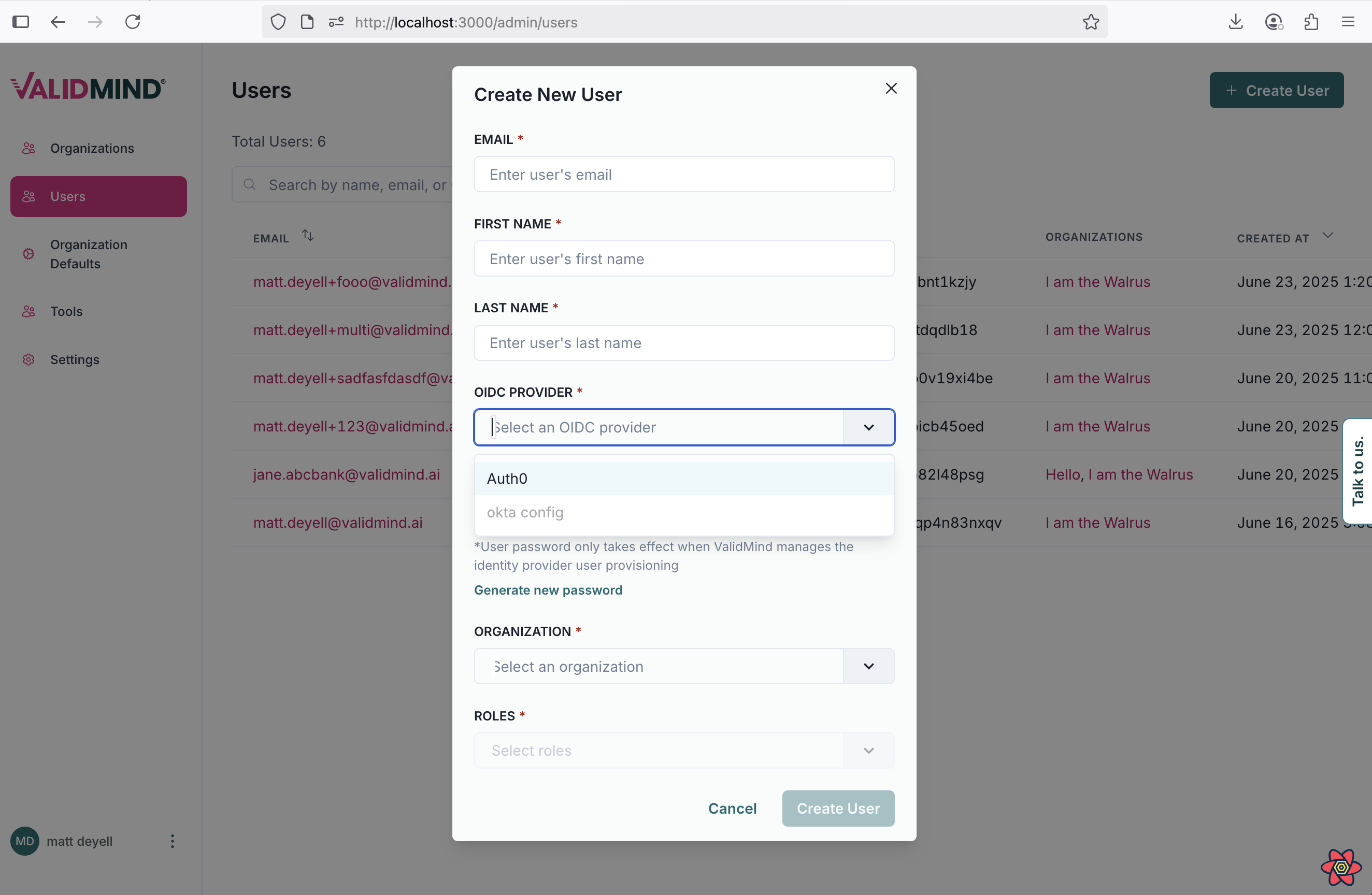
A web interface for creating a new user is displayed, with a modal window titled Create New User in the center. The form includes text fields for Email, First Name, and Last Name, followed by a dropdown menu labeled OIDC Provider with the default option Select an OIDC provider. Below, there is a text field for Organization and a dropdown for Roles, both with placeholder text. A blue Create User button is located at the bottom right of the modal. In the background, a sidebar on the left shows menu items for Users and Organization Details, with Users highlighted in red, and a list of existing users is partially visible on the right.

Add UI for managing admin API credentials

You can now view and rotate admin-level API tokens if you are a Super Admin user. This update improves the management of admin API credentials on the Admin Users page and related API methods.
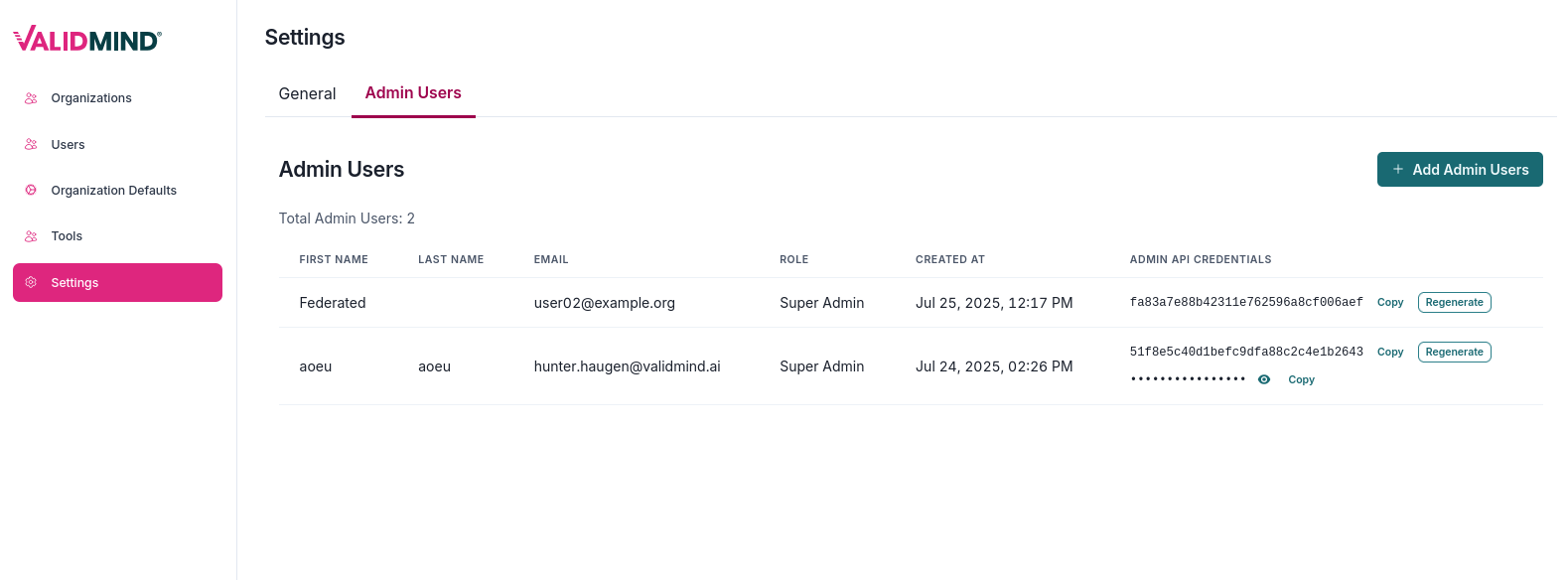
A web interface titled Settings with a tabbed layout showing two tabs: General and Admin Users, with Admin Users selected. Below the tab, there is a section titled Admin Users displaying a table with columns labeled Type, Name, Email, Role, Created At, and Admin API Credentials. The table lists two entries: the first row shows Federated, user1@example.org, Super Admin, and a creation date of Jul 25, 2023, 12:17 PM, with options to Copy and Regenerate credentials; the second row shows Local, hunter.haugen@validmind.ai, Super Admin, and a creation date of Jul 24, 2023, 2:22:56 PM, with a Copy option. A blue Add Admin Users button is located in the top right corner. The interface has a pink vertical navigation menu on the left with options for Organizations, Users, Organization Defaults, and Settings.

Add support for Entra IDP in multi-OIDC mode

You can now log in using the Entra IDP when operating in multi-OIDC mode. To enable this feature, set the following environment variables in the frontend:

  • REACT_APP_AUTH_AUTHORITY=https://login.microsoftonline.com/{APPLICATION_ID}/v2.0
  • REACT_APP_AUTH_CLIENT_ID={TENANT_ID}
  • REACT_APP_AUTH_AUDIENCE={TENANT_ID}
  • REACT_APP_ENTRA_MODE=true

Other changes

Loops are not allowed in custom formulas

We have updated the instructional text in the CustomFieldModal component to enhance clarity and usability.
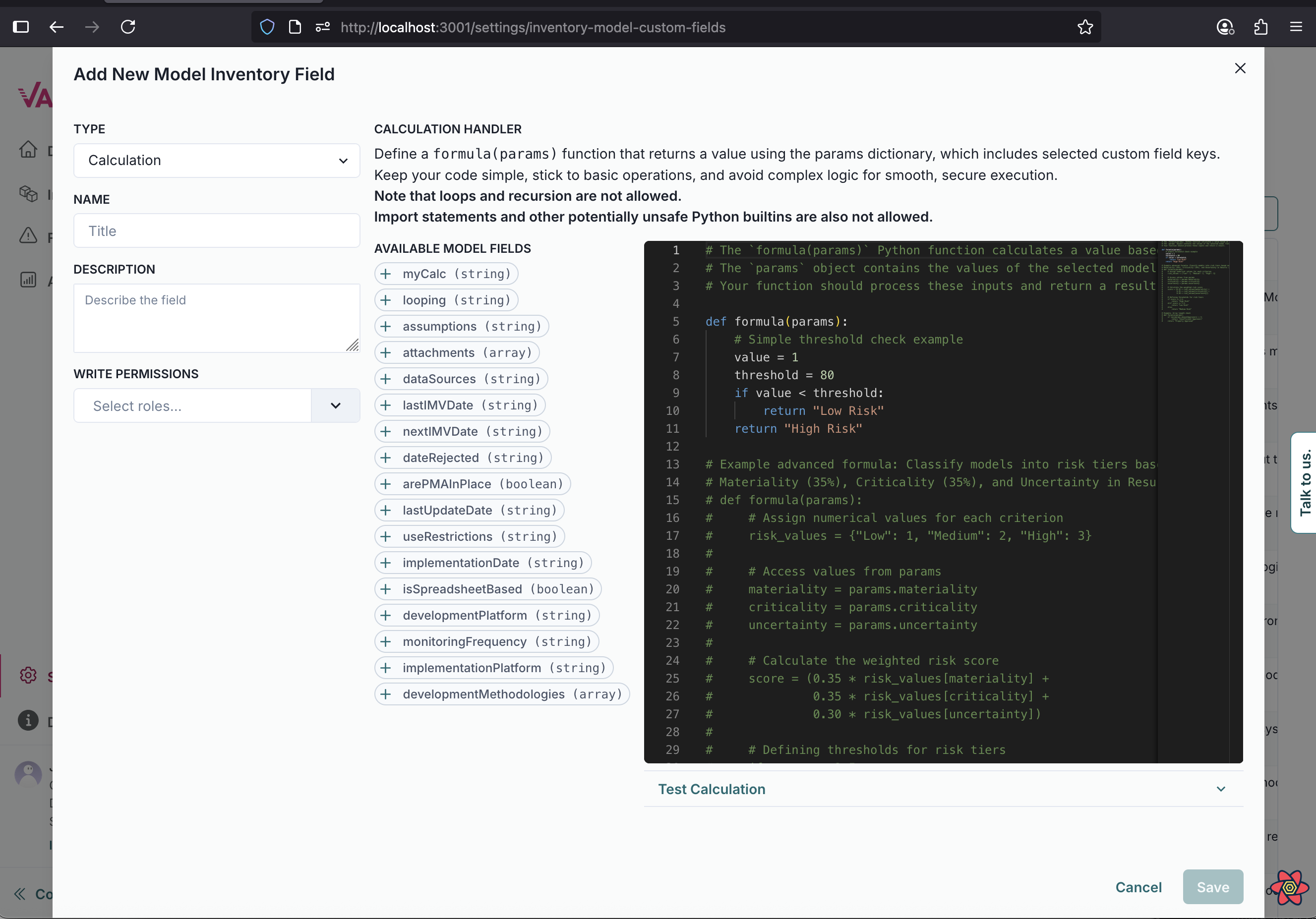
A web interface titled Add New Model Inventory Field is displayed, featuring a form with fields for entering details about a new calculation. On the left, there are three sections: Name, Description, and Write Permissions, each with input fields. The right side contains a code editor with a dark background, showing Python code for defining a calculation handler. Below the code editor, there is a button labeled Test Calculation. At the bottom right corner, there are Cancel and Save buttons. The interface uses a clean layout with a white background and blue accents for buttons and input fields.

Delete workflow no longer considers deleted models when warning you

This update removes the obsolete API endpoint function GetWorkflowModelDependenciesCount from the API module and adjusts its usage accordingly by removing its registration in the actions object.

Bug fixes

No need to select an OIDC when creating users

This update improves the user creation process in the admin panel. You no longer need to select an OIDC when creating a user. If no OIDC is chosen, the user will be created using the admin's default OIDC.
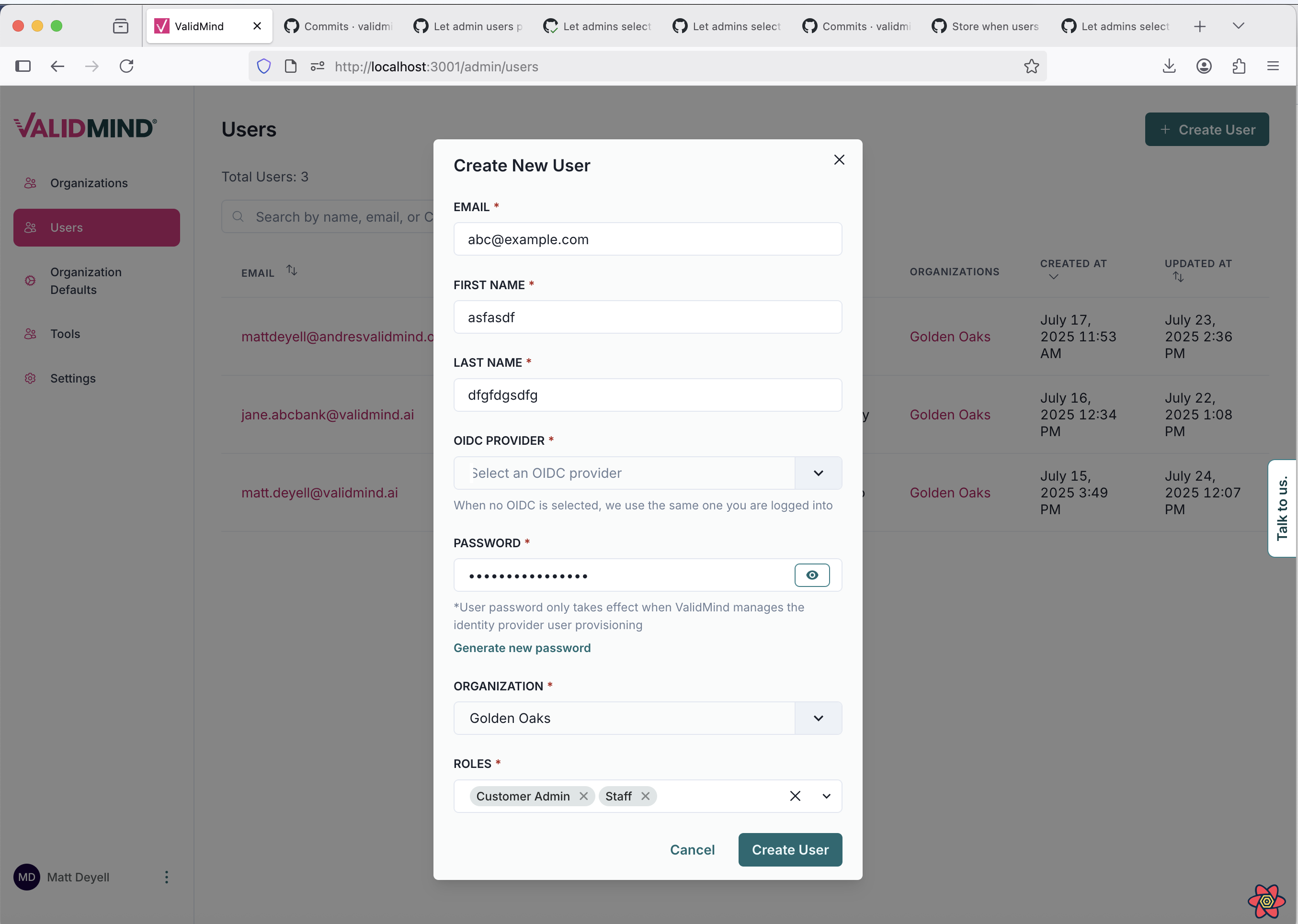
A web interface displaying a user management page titled Users with a sidebar on the left showing menu items including Organization, Defaults, and Users. The main section features a modal window titled Create New User with fields for Email, First Name, Last Name, OIDC Provider, and Password, each with corresponding input boxes. The OIDC Provider field includes a dropdown menu labeled Select an OIDC provider, and the Password field has a note indicating password requirements. Below the fields, there are dropdown menus for Organization and Roles, with options such as Golden Oaks and Customer Admin. A blue Create User button is located at the bottom right of the modal, and a table on the right lists existing users with details like email, organization, and roles.

Fix analytics rendering issue with 0 values in widgets

This update enhances the ReportCounter component within the visualizations module, improving both performance and usability.
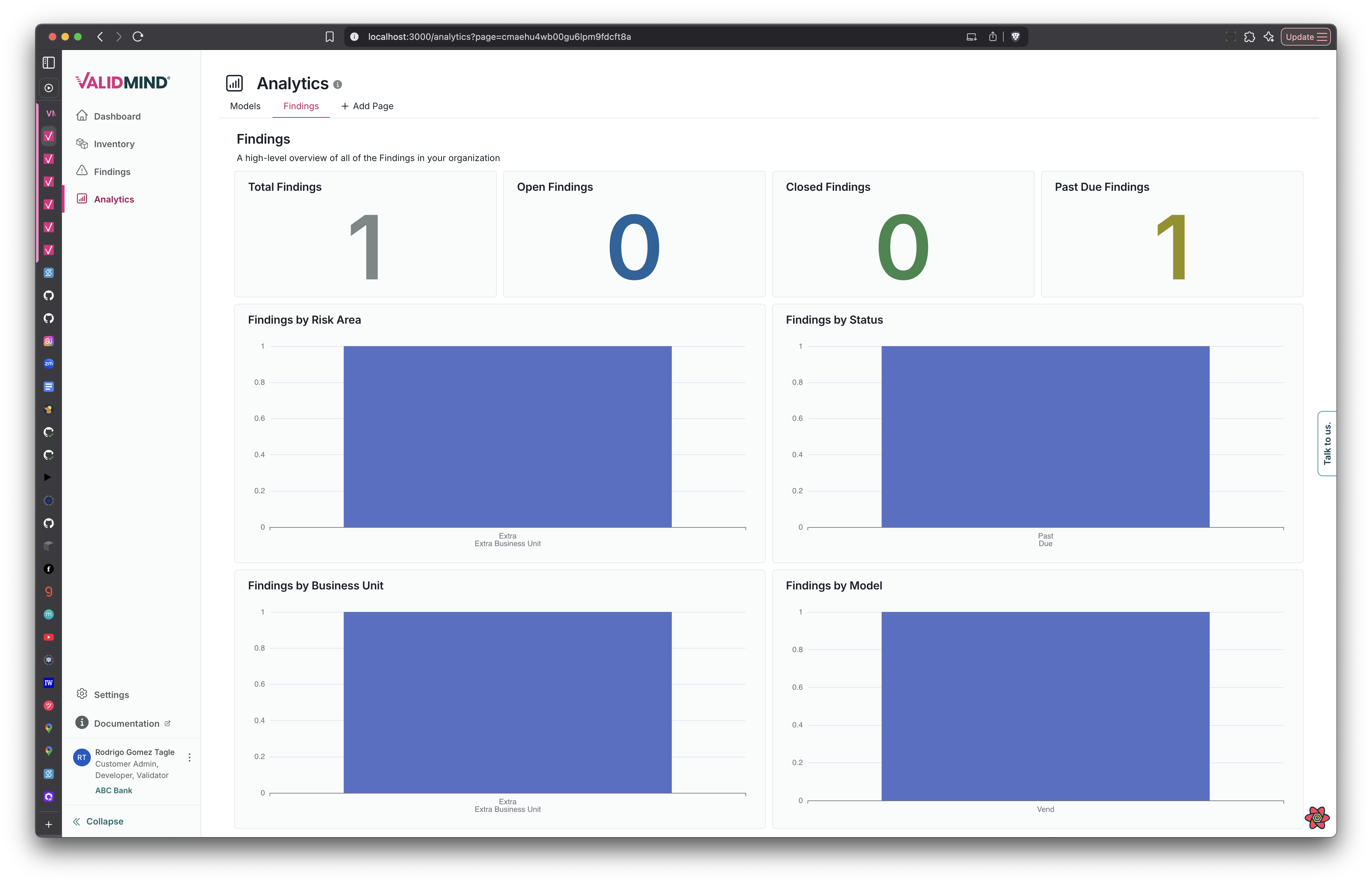
An analytics dashboard interface displays a header titled Analytics with a subtitle Findings at a Glance. Below, there are three large numeric indicators showing Open Findings as 1, Closed Findings as 0, and Past Due Findings as 1, each in different colors. Four bar charts are arranged in a two-by-two grid beneath the indicators, labeled Findings by Risk Area, Findings by Status, Findings by Business Unit, and Findings by Model, each with blue bars and axes labeled from 0 to 1. A vertical navigation menu on the left includes items such as Dashboard, Findings, and Analytics, with a Settings section and a user profile icon at the bottom. The interface has a dark header with navigation controls and a search bar at the top.

Installation

Enhancements

Add resource limits for Keycloak and Redis in Helm chart

You can now specify resource limits and requests for the keycloak and redis pods in the Helm chart configurations. This enhancement allows for better resource management and optimization of your deployments.

Allow annotations on keycloak ingress

You can now add annotations to the keycloak ingress.

Documentation

Enhance OIDC configuration for multiple providers and improved security

This update introduces significant enhancements to our OIDC setup, enabling you to support multiple OIDC providers while improving security and administrative control: Supporting multiple OIDC providers documentation.

Other changes

Add TLS and support for multiple ingresses

You can now configure the Helm chart to deploy either a single ingress for both the frontend and backend or separate ingresses by setting the ingress.singleIngress option. If you choose separate ingresses, you can specify different annotation pools for each. Additionally, you can define TLS secret names using ingress.tls.secretName, ingress.tls.appSecretName, and ingress.tls.apiSecretName when terminating TLS at the ingress instead of the load balancer.

Add Helm template for vm-tools debugging pod

This update introduces a new Helm job for deploying vm-tools along with corresponding configuration updates.

Documentation

Highlights

Revamped Administrator Fundamentals course with new modules

We have completely revamped the Administrator Fundamentals course with four new modules to enhance your skills: Developer Fundamentals

  1. Onboarding your organization: Set up ValidMind for your organization, including configuring permissions.

  2. Customizing your model inventory: Tailor your model inventory and use reusable templates within the ValidMind platform.

  3. ValidMind for model risk management: Use ValidMind as a centralized hub for risk management, including workflows, attestations, and analytics.

  4. Organizational oversight & reporting: Audit model activity and more.

The learning paths have been updated accordingly.
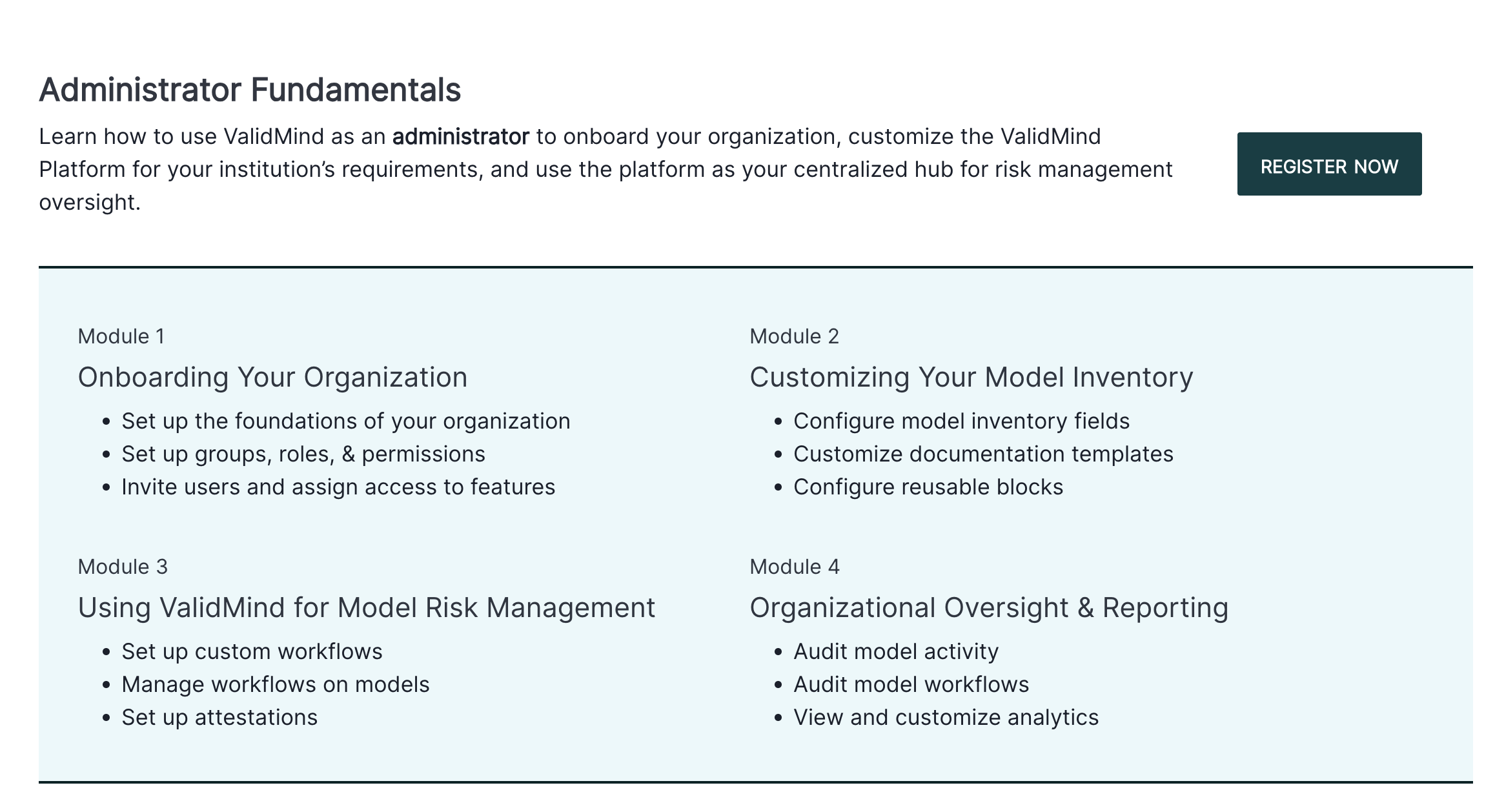
The image shows a webpage titled Administrator Fundamentals, with a brief description encouraging the use of ValidMind as an administrator for organizational onboarding and risk management. Below the title, there is a Register Now button on the right side in dark green. The page is divided into four modules, each with a title and bullet points. Module 1 is Onboarding Your Organization, focusing on setting up foundations and permissions. Module 2 is Customizing Your Model Inventory, highlighting model inventory fields and documentation templates. Module 3 is Using ValidMind for Model Risk Management, emphasizing workflows and monitoring. Module 4 is Organizational Oversight & Reporting, covering audit activities and analytics, all presented in a two-column layout with a clean, white background.

Administrator onboarding modules overview

Enhancements

Enhance administrator quickstart documentation for ValidMind setup

We've introduced a new quickstart experience for organization administrators, providing a user-friendly guide to managing your organization on the ValidMind platform. This update covers the essentials of setting up ValidMind, including adding foundational units and defining detailed access permissions for your users before inviting them to the platform.

Create rebrandable docs site with Kubernetes manifest configuration

The ValidMind documentation site Docker image now supports full customization for white-label deployments and branded environments.

Configurable branding & URLs

  • Customize product names in both long and short forms.
  • Replace the ValidMind logo and favicon with your own SVG assets.
  • Configure custom URLs for your ValidMind platform and JupyterHub instances. Configuration is managed through a ConfigMap, which you can adjust to fit your needs.

Local development support

  • A new Kind (Kubernetes in Docker) integration is available for local testing.
  • Use simple make commands to set up a local Kubernetes environment.
  • Access real-time log viewing and manage clusters easily.

For detailed setup instructions and configuration options, refer to Local Kubernetes development with Kind. For a sample ConfigMap, see validmind-docs.yaml.

  • ValidMind Logo
    ©
    Copyright 2026 ValidMind Inc.
    All Rights Reserved.
    Cookie preferences
    Legal
  • Get started
    • Development
    • Validation
    • Setup & admin
  • Guides
    • Access
    • Configuration
    • Integrations
    • Workflows
    • Inventory
    • Risk tiering
    • Documents & templates
    • Documentation
    • Validation
    • Reporting & auditing
    • Monitoring
    • Attestation
  • ValidMind Library
    • Quickstarts
    • Development tutorial
    • Validation tutorial
    • Run tests & test suites
    • Use library features
    • Code samples
    • Python API
    • Public REST API
  • Training
    • Learning paths
    • Courses
    • Videos
  • Support
    • Troubleshooting
    • FAQ
    • Get help
  • Edit this page
  • Report an issue
  • Community
    • GitHub
    • LinkedIn
    • Events
    • Blog